Below are the MINIMUM requirements for a SolidWorks computer, while the bare minimum works the higher the computers stats, the smoother it is to run SolidWorks.
Min 4gb graphics card, ([Click here to see all the certified graphics cards](https://www.solidworks.com/support/hardware-certification/)) Min 16gbs ram, (32 GB recommended) Min 2.7ghz cpu/processor, (Anything above an i5) These computers are expensive so they are not only meant for SolidWorks, but also everyday use and can also be used in college as well.If you need help finding a computer or want to find a cheaper one than is on normal vendors look for refurbished computers or message in CAD chat in discord, and someone will help you find a computer in your budget.
# Out with the old, In with the newThis is only for students that have previous versions of SolidWorks already on their computer!
First things first, before downloading the newest form of SolidWorks, all previous versions MUST be deleted. The easiest way to do this is to go to Settings --> Apps --> Installed Apps --> Type Solidworks into the search bar. [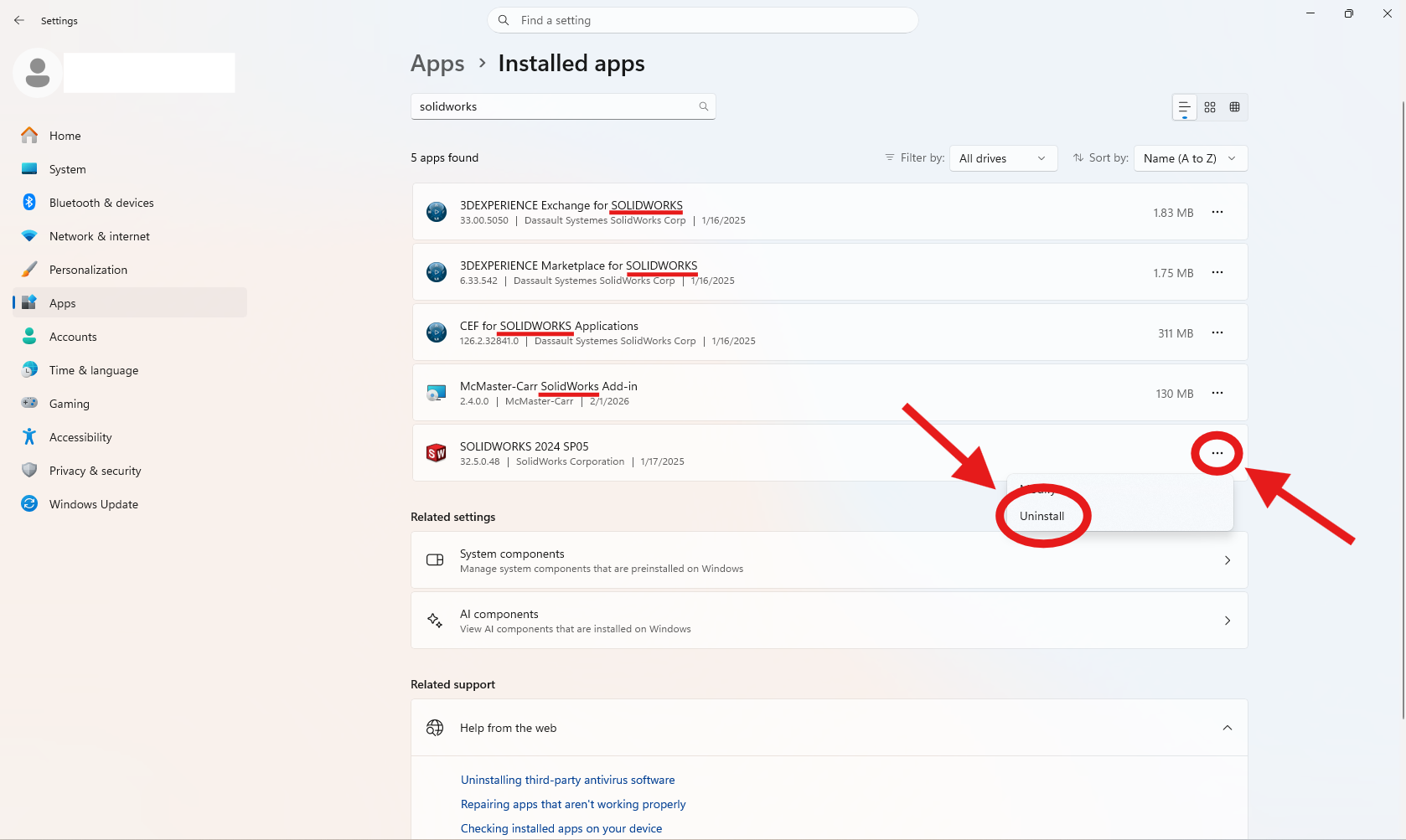](https://wiki.yetirobotics.org/uploads/images/gallery/2026-07/zwOuse-1.png)Make sure to delete all add-ons of Solidworks, like 3DEXPERIENCE, as well.
After clicking uninstall, a pop-up will appear on your screen. Make sure all the items in the box are selected and click, remove items. [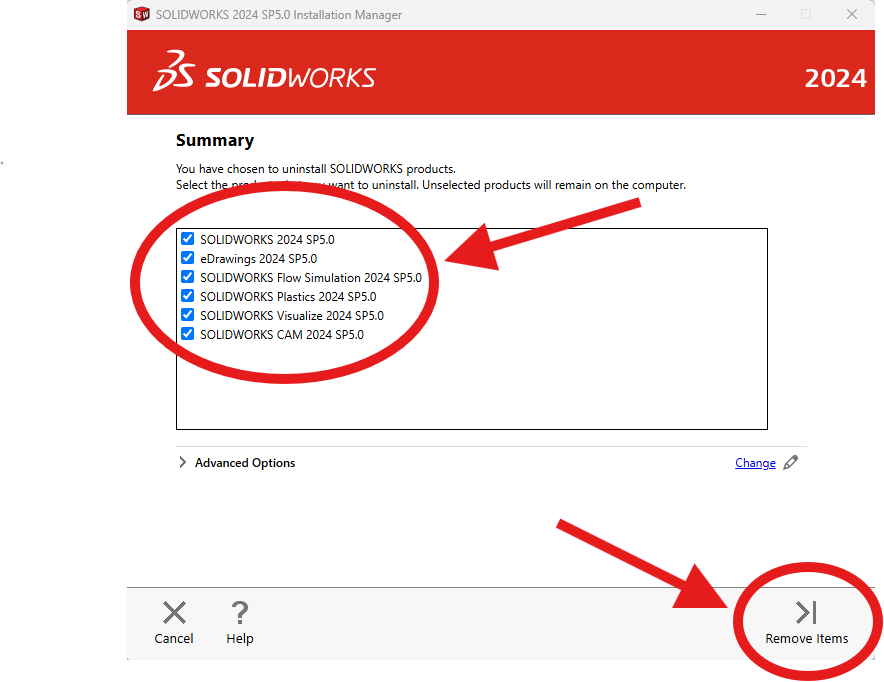](https://wiki.yetirobotics.org/uploads/images/gallery/2026-07/use-2.png) Lastly click deactivate now, since you will be using a new license. [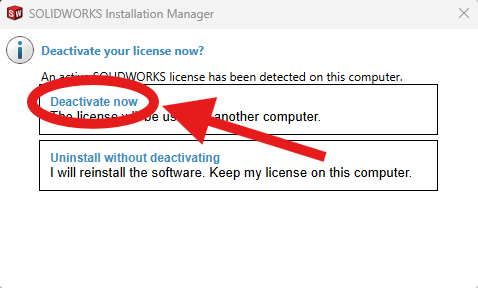](https://wiki.yetirobotics.org/uploads/images/gallery/2026-07/use-3.png)Make sure you have access to internet for a while since the process requires it and takes some time.
[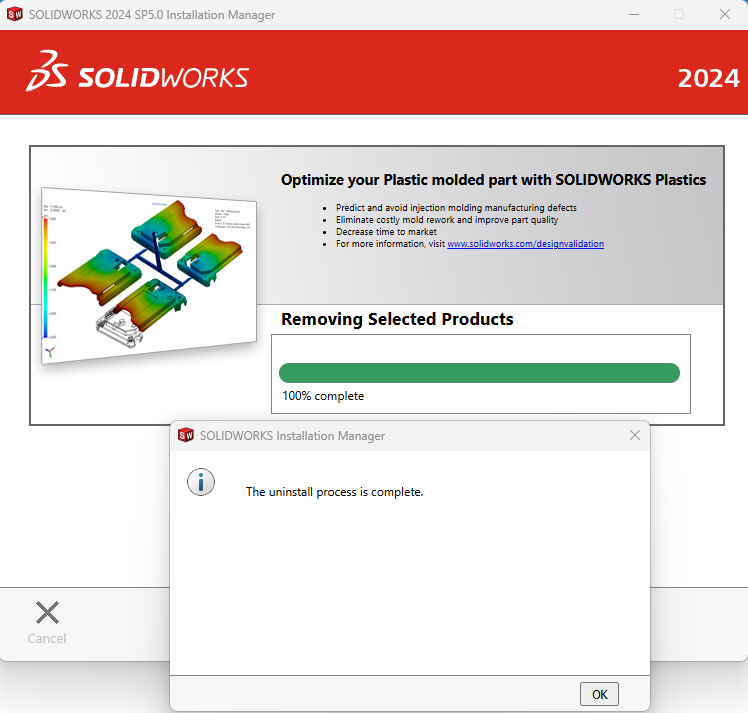](https://wiki.yetirobotics.org/uploads/images/gallery/2026-07/screenshot-2026-07-06-154038.png) Once you receive this pop-up you are done and can move on to downloading your newest version! # Downloading Solidworks Now that you have done all the prerequisites for SolidWorks, let's get to downloading! 1\. First go to [my.solidworks.com](https://my.solidworks.com/try-solidworks) and create an account [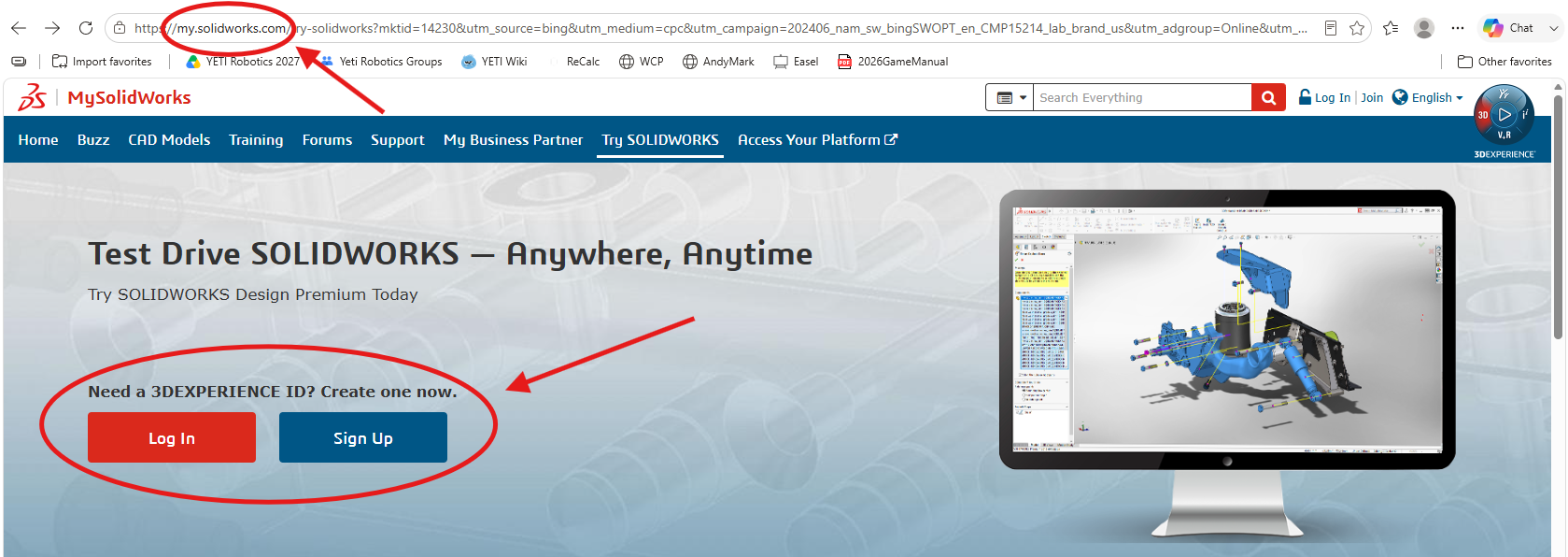](https://wiki.yetirobotics.org/uploads/images/gallery/2026-07/screenshot-2026-07-07-102342.png)If you already have an account, you can skip this step.
2\. Next go to [SOLIDWORKS.com/SEK](https://www.solidworks.com/support/community-download#no-back) Fill in your contact information, click Yes for your Serial Number, and select 2026 (SP2.1) for your SolidWorks Version. Then click Request Download. [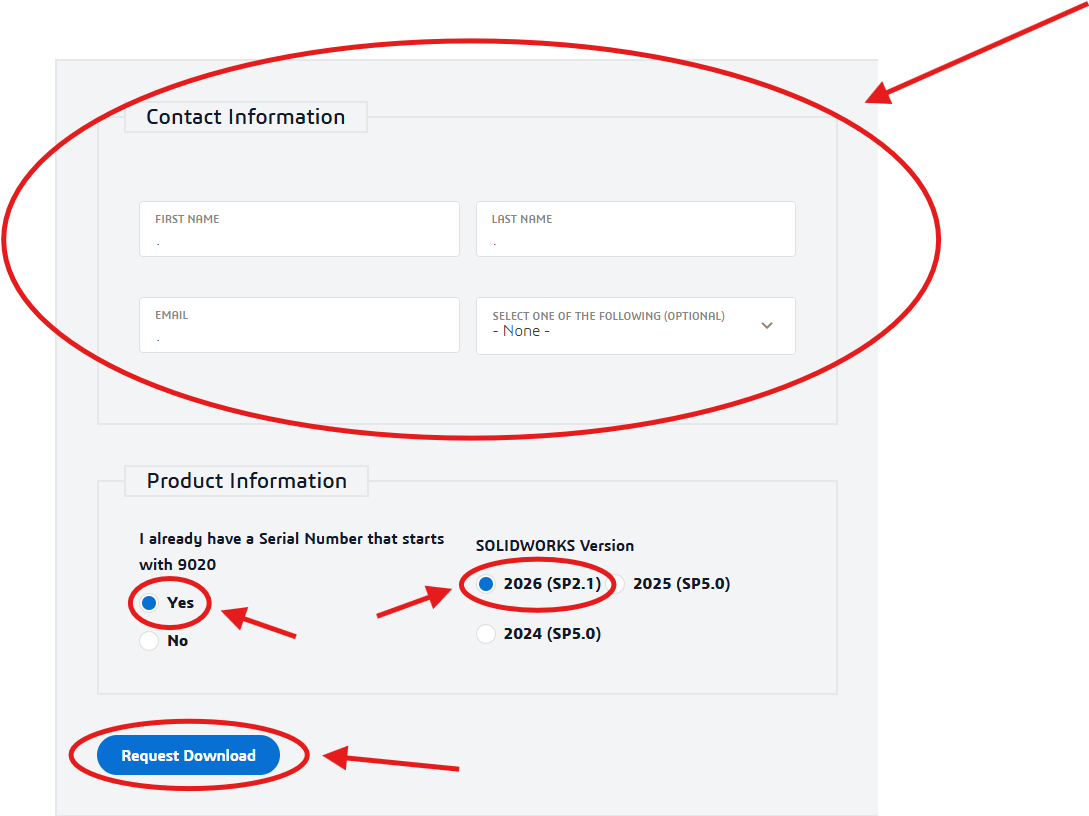](https://wiki.yetirobotics.org/uploads/images/gallery/2026-07/iLQimage.png)This ONLY applies to YETI student, ask your team for your Serial Number and Version!
3\. Next click Accept and Continue [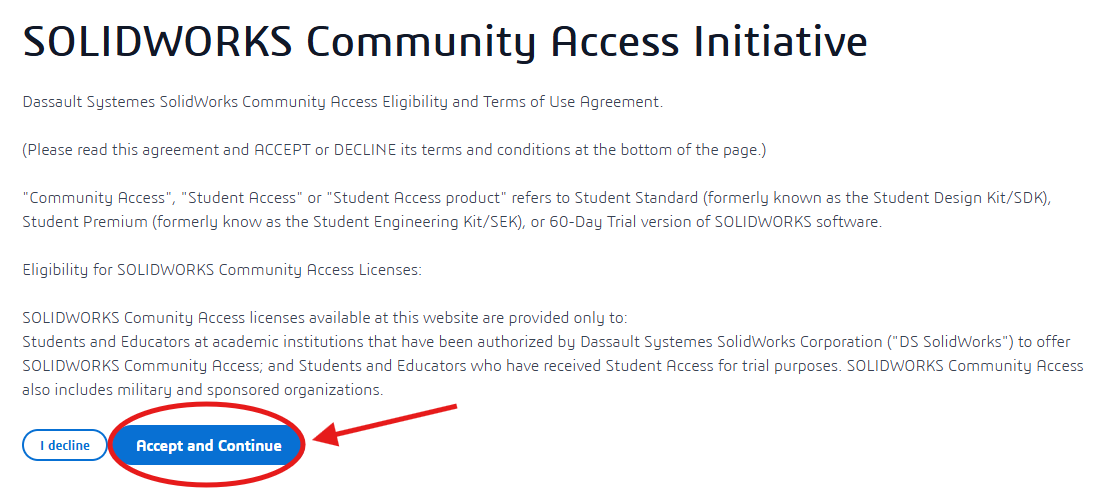](https://wiki.yetirobotics.org/uploads/images/gallery/2026-07/lL1image.png) 4\. And then Download [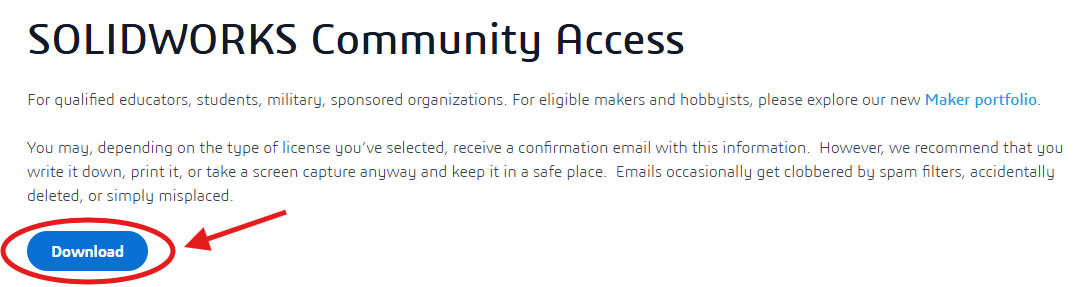](https://wiki.yetirobotics.org/uploads/images/gallery/2026-07/0cGimage.png) 5\. You should then see SolidWorksSetup pop-up in your downloads and click Open File. [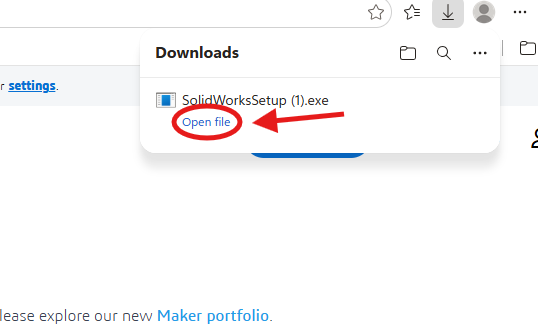](https://wiki.yetirobotics.org/uploads/images/gallery/2026-07/Lt5image.png) 6\. A pop up will then show up and click Unzip [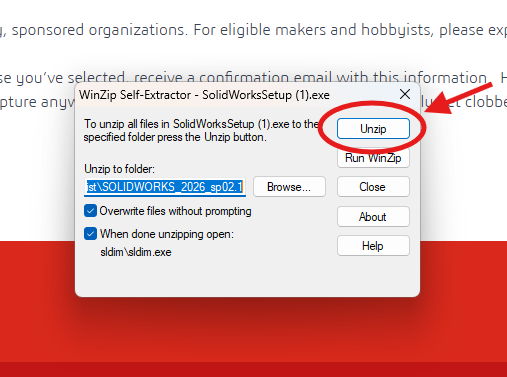](https://wiki.yetirobotics.org/uploads/images/gallery/2026-07/887image.png) 7\. If it asks, allow the program to make changes to your computer. 8\. It may also ask you to reboot your computer. If it does, cancel the installation and restart your computer.If you do restart your computer, you need to start from step 5 again.
[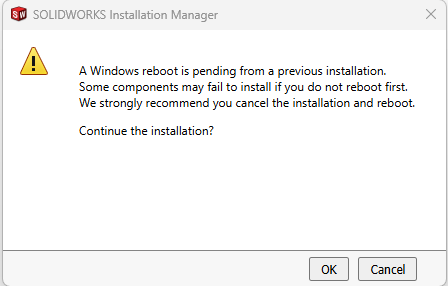](https://wiki.yetirobotics.org/uploads/images/gallery/2026-07/screenshot-2026-07-07-131227.png)If you get the error a second time after restarting, continue the installation by clicking OK
9\. Make sure (Install on this computer) is selected and click Next [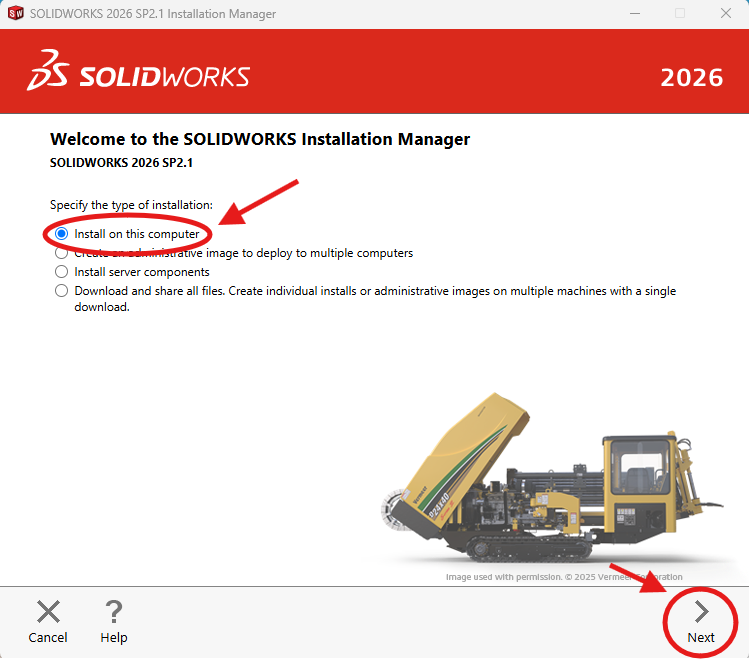](https://wiki.yetirobotics.org/uploads/images/gallery/2026-07/WSpimage.png) 10\. Enter your Serial Number in the space shown below, and click NextYETI student can find your Serial Number in the pins of the YETI discord CAD chat.
[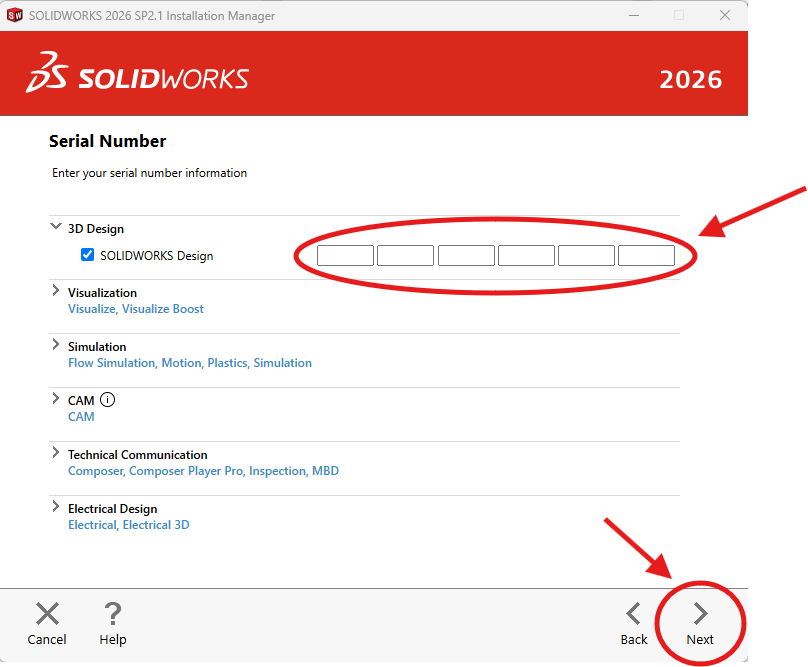](https://wiki.yetirobotics.org/uploads/images/gallery/2026-07/FvMimage.png)If you are not a YETI student, ask your team for a Serial Number.
11\. Click the check on the Terms of SolidWorks and then download and install.If you are using an old or previously used computer, make sure it has enough storage to hold what you are downloading.
[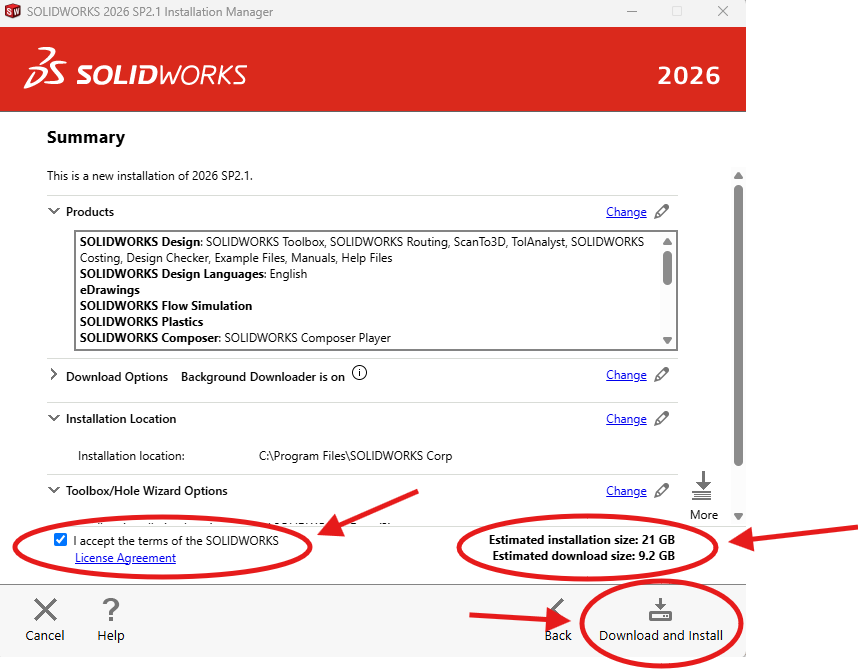](https://wiki.yetirobotics.org/uploads/images/gallery/2026-07/19rimage.png)Once again, this process will take time, and you need to make sure you are connected to internet the entire time.
Once it is finally done downloading click finish and we will move on to activating the account! # Activating your SolidWorks The last step needed to use SolidWorks is activating your account. 1\. First find the SolidWorks Design Icon and open it. [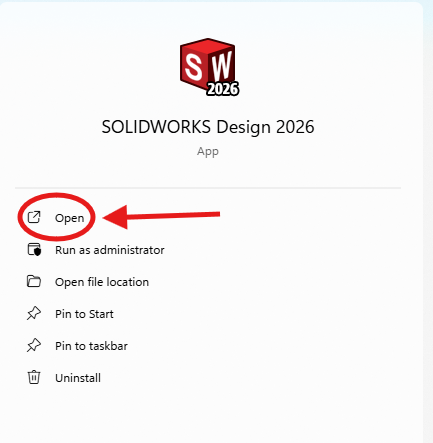](https://wiki.yetirobotics.org/uploads/images/gallery/2026-07/Wz9image.png) 2\. Next a pop-up will show up Make sure (I want to activate my SOLIDWORKS product now) is selected Then click Next [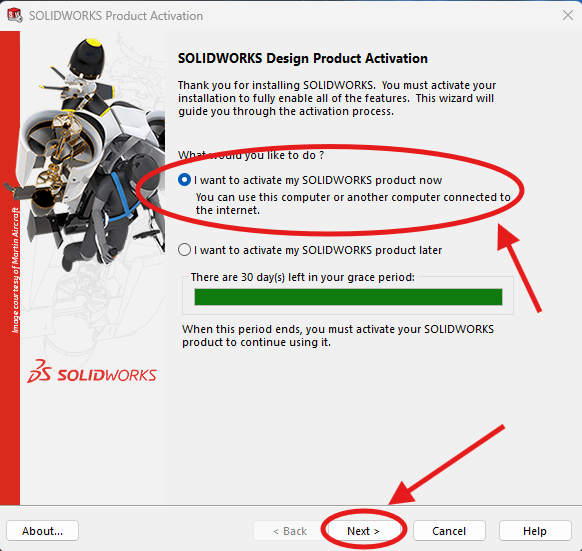](https://wiki.yetirobotics.org/uploads/images/gallery/2026-07/jwEimage.png) 3\. Make sure (Automatically over the Internet) is selected, and make sure your email is in the Contact Info section. Then click Next [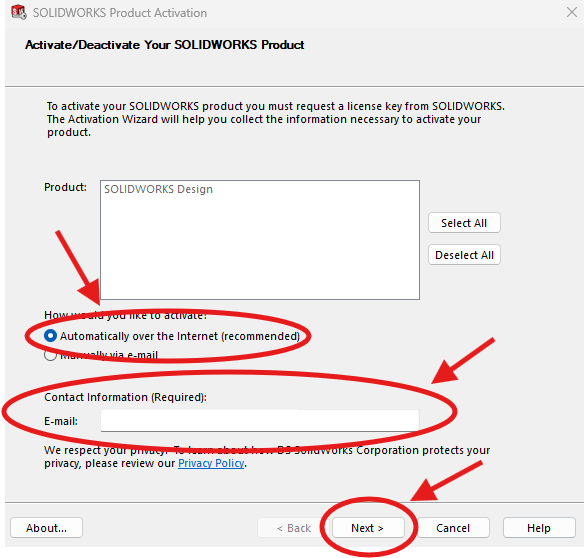](https://wiki.yetirobotics.org/uploads/images/gallery/2026-07/07bimage.png) 4\. After a little bit you will see a (Activation Succeeded) page and click Finish to continue. [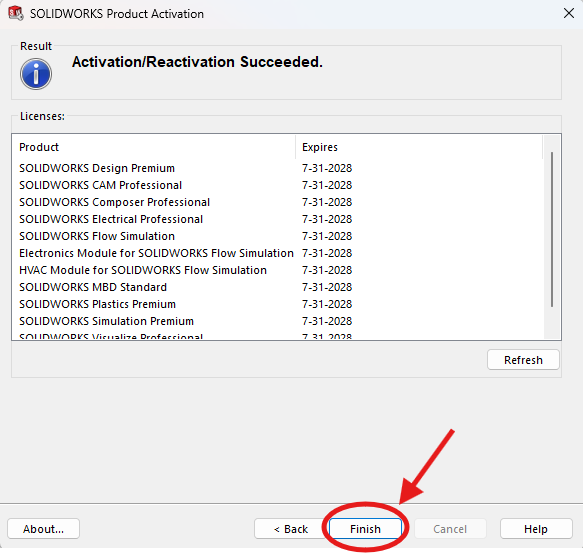](https://wiki.yetirobotics.org/uploads/images/gallery/2026-07/pkzimage.png)If you have any issues with this, send a message and screenshot in CAD chat.
Lastly click accept on the license agreement and you are done! [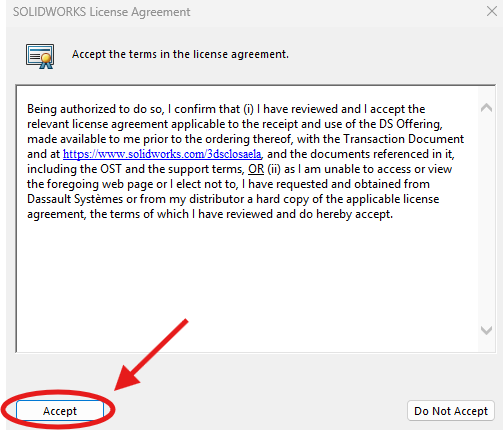](https://wiki.yetirobotics.org/uploads/images/gallery/2026-07/Yykimage.png)