# How to open Visualize?
Now that you have a file ready to render, we can move on to opening visualize!
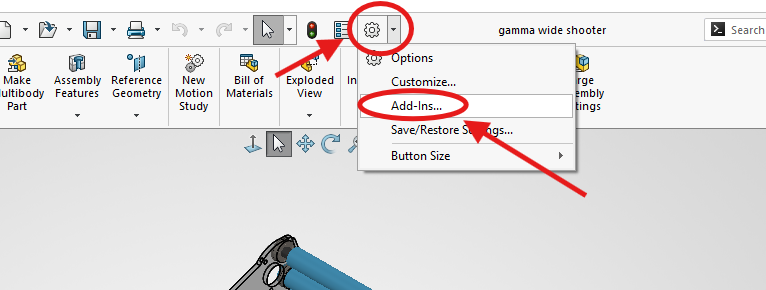
1\. First click the setting icon in the top bar of the menu
[](https://wiki.yetirobotics.org/uploads/images/gallery/2026-08/poaimage.png)
2\. Then click Add-Ins
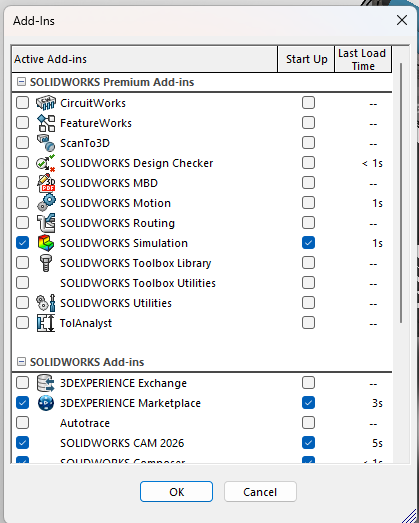
3\. Next this pop-up will show up so scroll down till you see SOLIDWORKS Visualize
[](https://wiki.yetirobotics.org/uploads/images/gallery/2026-08/screenshot-2026-08-13-150831.png)
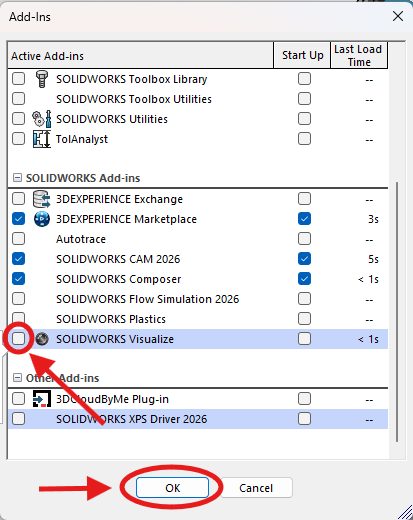
4\. Then click the checkmark to the left of SOLIDWORKS Visualize and click OK.
[](https://wiki.yetirobotics.org/uploads/images/gallery/2026-08/f7Fimage.png)
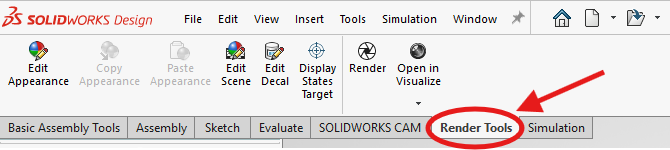
5\. Then two new tabs will show up on your top bar, click Render Tools
[](https://wiki.yetirobotics.org/uploads/images/gallery/2026-08/KM2image.png)
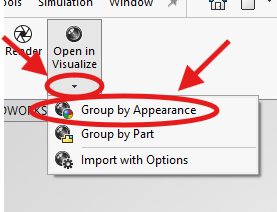
6\. Next click the arrow below Open in Visualize and Group by Appearance
[](https://wiki.yetirobotics.org/uploads/images/gallery/2026-08/w2Fimage.png)
There is a glitch that when you close out SolidWorks then open it up again the Open in Visualize button is there but not clickable. If that is the case, just repeat steps 1-6 again and that will fix it.
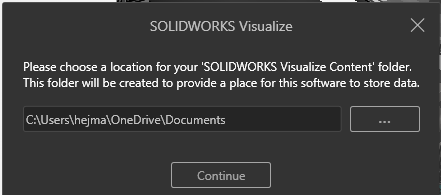
7\. Lastly you will receive the pop-up below
I would recommend creating a folder for all of your renders and changing the location to your new folder
[](https://wiki.yetirobotics.org/uploads/images/gallery/2026-08/screenshot-2026-08-13-151309.png)
8\. Once you are satisfied with the location for your renders click continue to open Visualize!