This is only for students that have previous versions of SolidWorks already on their computer!
First things first, before downloading the newest form of SolidWorks, all previous versions MUST be deleted. The easiest way to do this is to go to Settings --> Apps --> Installed Apps --> Type Solidworks into the search bar. [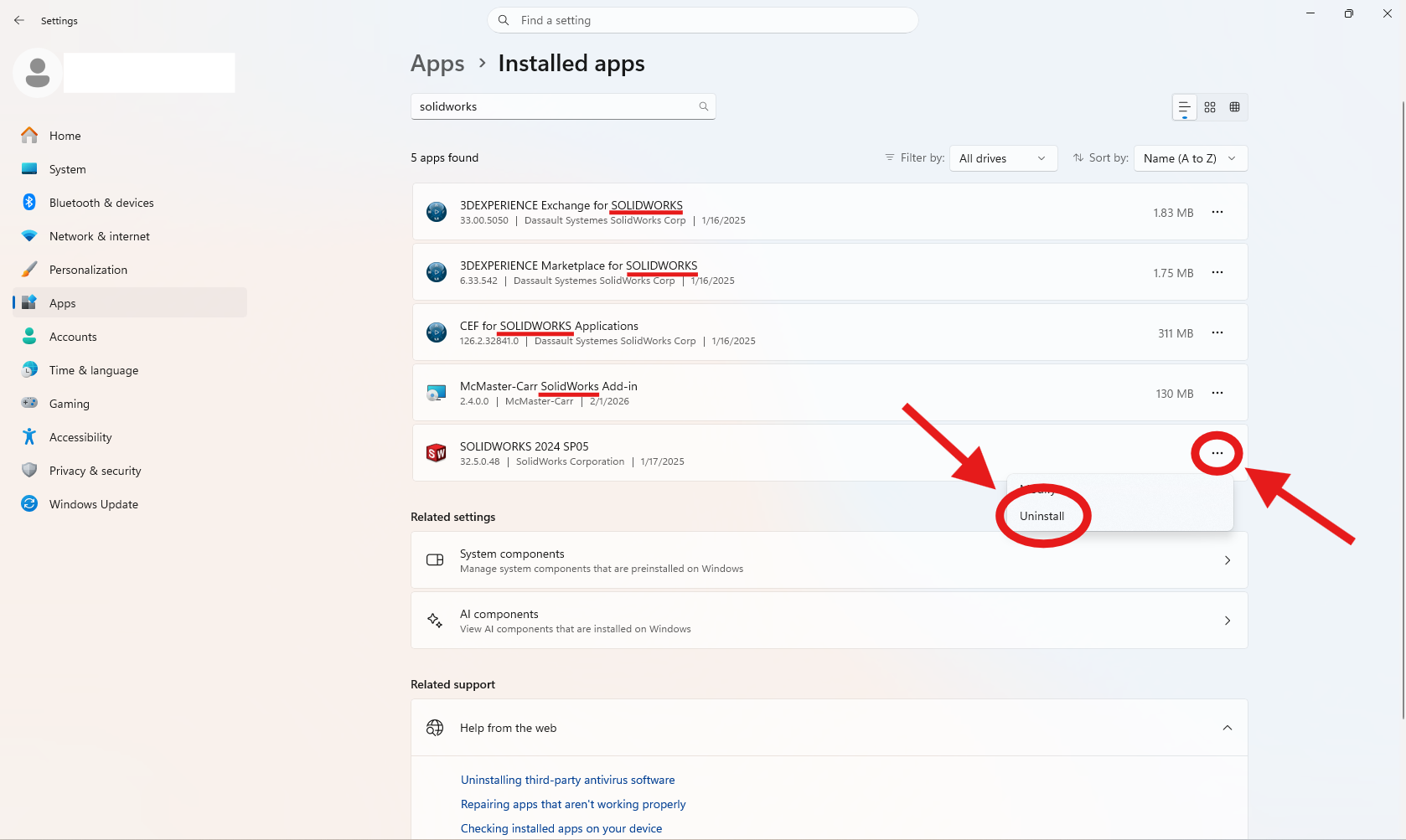](https://wiki.yetirobotics.org/uploads/images/gallery/2026-07/zwOuse-1.png)Make sure to delete all add-ons of Solidworks, like 3DEXPERIENCE, as well.
After clicking uninstall, a pop-up will appear on your screen. Make sure all the items in the box are selected and click, remove items. [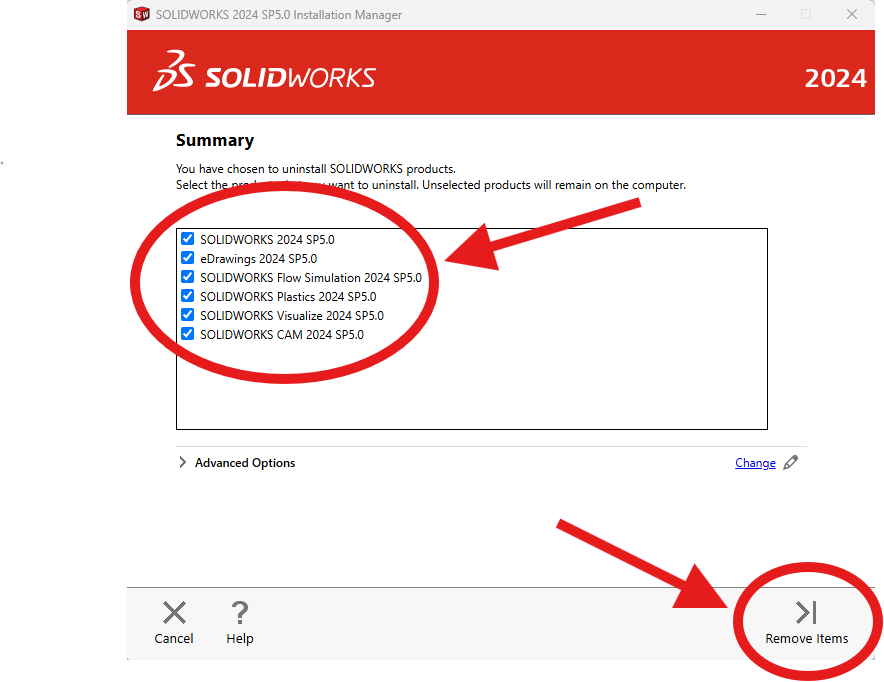](https://wiki.yetirobotics.org/uploads/images/gallery/2026-07/use-2.png) Lastly click deactivate now, since you will be using a new license. [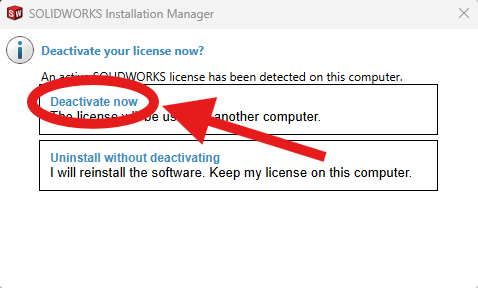](https://wiki.yetirobotics.org/uploads/images/gallery/2026-07/use-3.png)Make sure you have access to internet for a while since the process requires it and takes some time.
[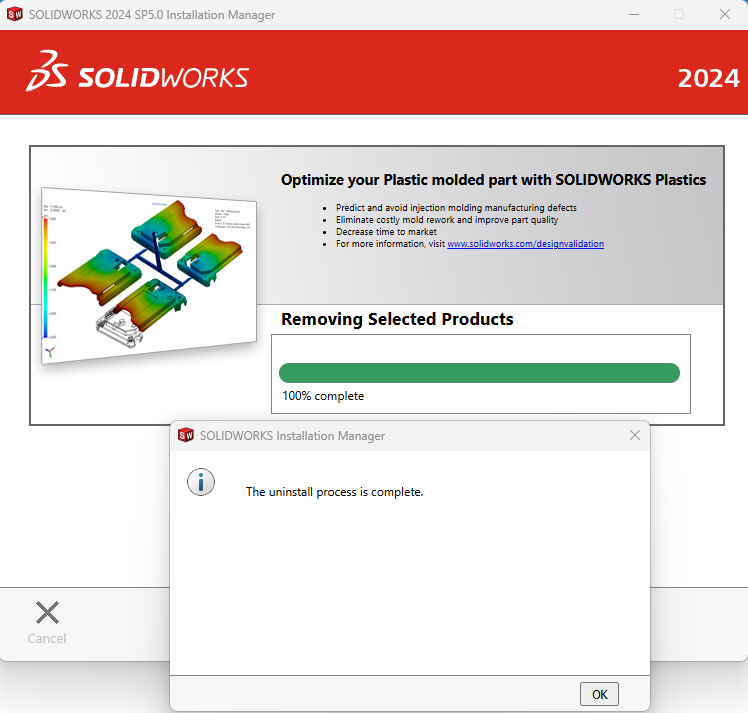](https://wiki.yetirobotics.org/uploads/images/gallery/2026-07/screenshot-2026-07-06-154038.png) Once you receive this pop-up you are done and can move on to downloading your newest version!