Electrical Schematics
- Starting the Schematic: Overall Drivetrain Layout
- Detailing the Schematics: Splitting the Subsystems Up
Starting the Schematic: Overall Drivetrain Layout
Hey there! If you're reading this you're trying to create an electrical schematic of your robot! In order to facilitate your journey of creating your electrical schematics, this tutorial is split up into simple sections. The program we utilize as of 2026 is draw.io.
1.0 - Creating a Basic Shape of a Drivetrain
1.1 - Outlining major points of interference (POI's)
1.2 - Identifying Different Types of Drivetrains and How to Depict Different Types
1.3 - Adding the Basic Electrical Components
1.0 - Creating a Basic Shape of a Drivetrain
To begin, you must have a picture of your drivetrain in CAD in order to get a good idea of the shape of your drivetrain. Utilize the shape tools in draw.io to copy the shape of the drivetrain as shown in Figure 1 and Figure 2. For this drivetrain it is a simple square shape but other robots can have different shapes such as 435's 2026 robot which was in shape of a triangle.
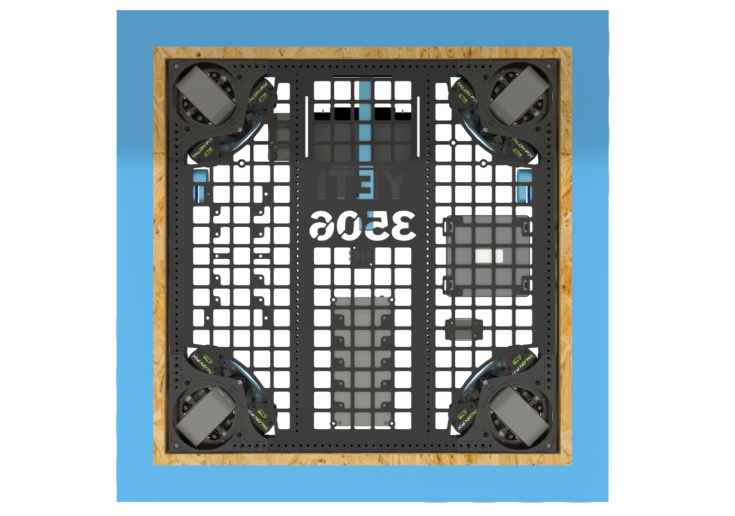
Figure 1

Figure 2
1.1 - Outlining major points of interference (POI's)
In robotics, a Point of Interference (POI) is defined as any area where wiring cannot be routed or is at risk of damage, such as the space beneath an elevator shaft where moving parts could easily crush or sever the cables. When it comes to making schematics POI's are extreme danger zones do not cross zones if you will. No wires or electrical components should be in a POI. As a general rule of thumb any area that may grind, chew, sever, or damage a wire in any way should be avoided.
Let's look at some examples on where to not route wires.
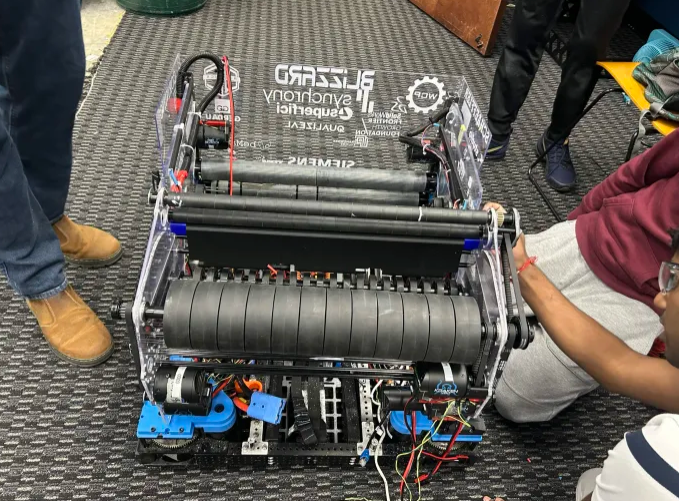
Figure 3
The image shown in Figure 3 is a shooter of one of our robots, Blizzard. Now let's say we take those wires and route them to other components through the flywheels (the large black wheels). This is why knowledge of how mechanical components is beneficial even in electrical. Flywheels would completely destroy wires as they are meant to spin at high revolutions per minute
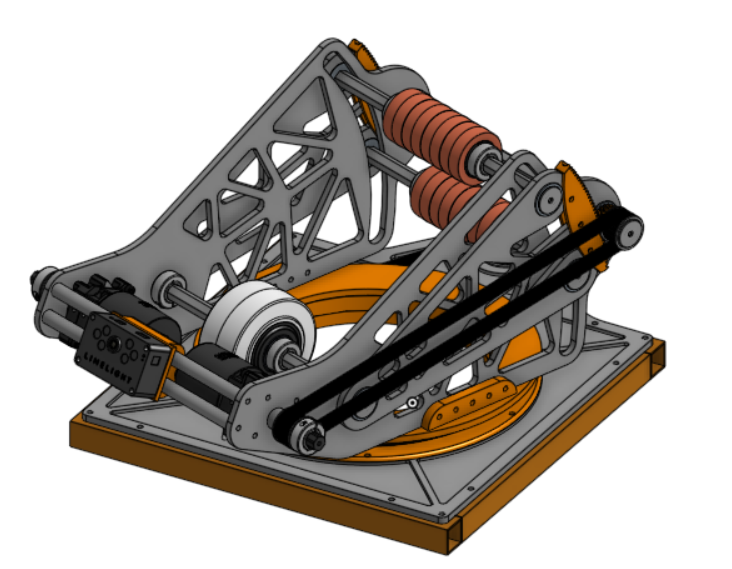
Figure 4
Another example is shown in Figure 4 this is an image of a turret from this year's game. The POI I want to focus on is at the base of the structure. This might not be a very obvious POI at first but when you look closer at it and understand how it functions this turret is designed to rotate. If you wanted to power the mounted limelight on the front you would want to avoid placing wires in the circular orange section. The reason you wouldn't want to do this is because wires can easily get pinched and damaged in between these parts.
If you still have trouble identifying POI's when designing wire routes talk with a veteran in your subteam about where to route and not route wires.
1.2 - Identifying Different Types of Drivetrains and How to Depict Different Types
Note: This is not a full detailed lesson on drivetrains/drivebase designs. This is just a lesson on how to depict drivetrains on a schematic. For more information visit the Drivebase Design page.
In FRC there are many different types of drivetrains but I'll only be highlighting three main types and how to depict them on a schematic. These three main types are Tank Drive, Swerve Drive, and Mecanum Drive. Our robots from 2024, 2025, and 2026 all use Swerve Drive. Below in Figure 5 a drivetrain with tank drive is shown.
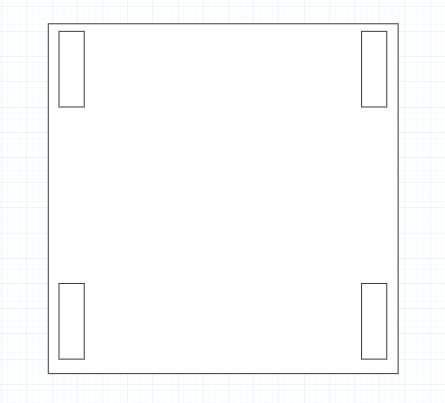
Figure 5
A tank drive consists of 4 or more wheels split evenly between two rows. It's major POI's of this system is outlined above in Figure 5. You don't want to put wires in the wheel areas as they will get damaged in these areas. A 3D image of a tank drive is shown in Figure 6 to better your understanding of how it looks bare.
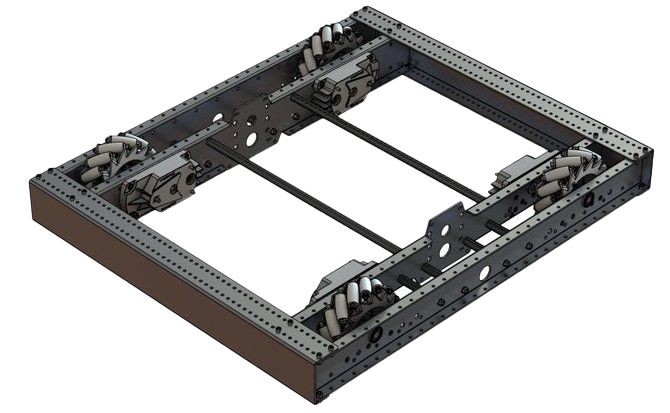
Figure 6
Note: There should always be motors powering these wheels contact your CAD team and discern if they will interfere with your wires or components at all.
Next is Swerve Drive. It contains four different swerve modules for square shaped robots the number of swerve modules can change change for drivetrains with a different shape. In Figure 7 a drivetrain with swerve is shown on a schematic. Then in Figure 8 a bare 3D model is shown.
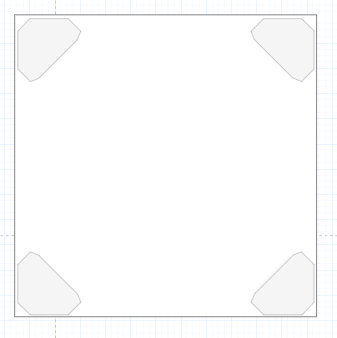
Figure 7
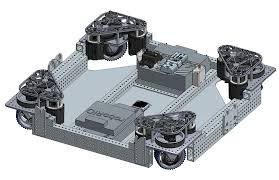
Figure 8
Next is Mecanum Drive.
Detailing the Schematics: Splitting the Subsystems Up
Here we go, detailing the Schematic! We are actually
2.0 - PDH Placement
2.1 - RoboRIO Placement
2.2 - Motor Placement
2.3 - Sensor Types and Placement
2.0 - PDH Placement
A PDH (Power Distribution Hub) is used to distribute power from a battery through the robot to components that require power. Although it is recommended to talk with the Electrical subteam on where to place the PDH, you should place the PDH in an area with few mechanical points of interference, where wires can be easily traced and managed, and where important wires are clearly distinguishable from the rest.
2.1 - RoboRIO Placement
The RoboRIO is the brain of the robot that gives out singles to different components through the CAN chain. You should talk with the Electrical subteam about the RoboRIO placement, but you should position the RoboRIO so it's readily accessible to both the radio and the RSL. To keep wiring clean and easy to trace, consider placing it away from the PDH, since that area tends to have a high concentration of wires.
2.2 - Motor Placement
A motor is a device that converts electrical energy into mechanical energy. It is recommended to talk to the Mechanical subteam to place each motor, but you can orient each motor so its wires face the interior of the robot, keeping them accessible for troubleshooting. You should ensure all wire extensions are long enough to comfortably reach and connect to their corresponding electrical components.
2.3 - Sensor Types and Placement
There are many types of sensors, including CANRange, CANCoder, Limelight, Pigeon, and CANColor.
-
CANRange
-
A CANRange sensor is a type of sensor that has a laser detection system. So anything that passes through the CANRange detects it and sends feedback through code. You should communicate with the Mechanical and Programming subteam for the placement, but you should place it where all its wires are out of danger from any mechanical component and where the laser points to the area you need it to point to.
-
CANCoder
-
A CANCoder sensor is a sensor used to measure the rotation, speed and the position of the component it is attached to. You should talk to the mechanical subteam for this components placement as they know where all the motors are going. It is recommended to orientate the wires so that they are out of the way of any mechanical component or danger.
-
Limelight
-
A limelight is a smart camera that detects April Tags throughout the field using code. It is recommended to talk to the programming subteam because they need to position the Limelight aiming towards the field.
-
Pigeon
-
This is a type of sensor that determines the gyro of the robot, so in simpler words, it determines if the robot is on a slant or flat ground. You mainly have to be mechanical because they need to be able to put it where there are no points of interference with mechanical components.
-
CANColor
-
This component detects color through code. They are used to detect gamepieces. You will mainly have to communicate with the programming subteam to place this component as it needs to face towards.