A good rule of thumb is to use as **few** waypoints as needed to decrease complexity and the time it takes your robot to travel from start to end.
**Linked Waypoints** are universal points on the field that can be used in any path. For example, if you know an optimal shooting position, create a waypoint at coordinates (x: 3.0, y: 4.0), and make it a Linked Waypoint using the button shown below. You can now use this linked waypoint in other paths by searching for it by its name. Editing a linked waypoint after it has been created will change the position of that waypoint for all instances on any path. [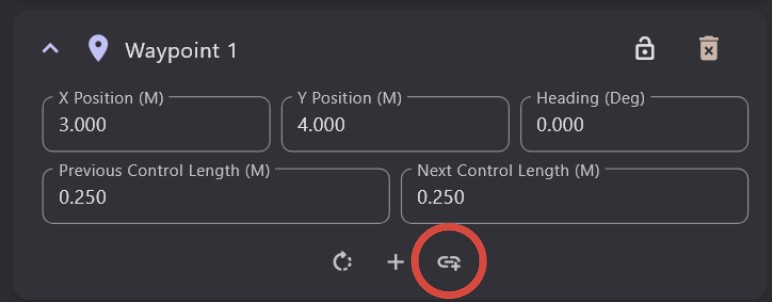](https://wiki.yetirobotics.org/uploads/images/gallery/2026-07/Gz2image.png) ##### Other Important Aspects to Consider - Path Optimization - Command Groups - Global Constraints # Choreo #### Overview and Resources This tool was created by a developer group called Sleipnir Here are the docs for Choreo: [https://choreo.autos/](https://choreo.autos/) This guide will walk you through how to use Choreo: [https://choreo.autos/usage/editing-paths/](https://choreo.autos/usage/editing-paths/) --- This page will be further updated as we start to use and experiment with Choreo! # Pathplanner vs Choreo #### Overview Pathplanner and Choreo are two solutions to generating paths in the autonomous period, and they are quite similar in many respects. At the time this page is being written (Summer 2025), YETI doesn't have experience with using Choreo. Therefore, it is important to understand the distinction between the two tools and their potential advantages and disadvantages when making decisions on what to use.**Fun Fact**: FRC #3015- the team that created Pathplanner- actually uses Choreo instead of Pathplanner!
**CD Threads:** [https://www.chiefdelphi.com/t/choreo-vs-pathplanner/467373](https://www.chiefdelphi.com/t/choreo-vs-pathplanner/467373) [https://www.chiefdelphi.com/t/choreo-vs-pathplanner/492427](https://www.chiefdelphi.com/t/choreo-vs-pathplanner/492427) # Composable Functions ### Overview Using composable functions essentially means ordering commands and paths into autos that are created as commands. This is, after some consideration, what YETI prefers to use to create autos. It is important to note that, while commands are created and used normally, paths have to be created through PathPlanner or Choreo. ### Walkthrough Here is an example of an auto we used in 2025: [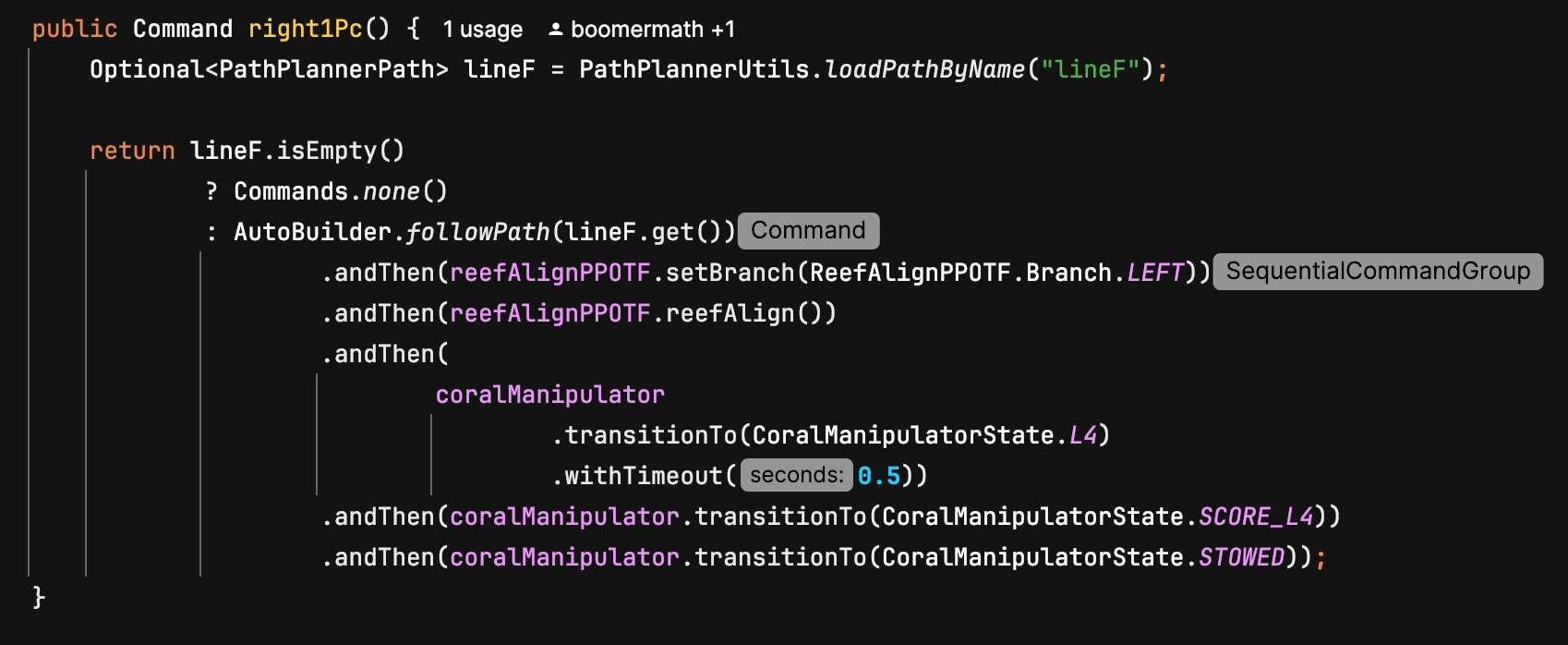](https://wiki.yetirobotics.org/uploads/images/gallery/2025-07/image.png) As you can see, the auto- *right1Pc*- is actually a command. The first thing we do is define *lineF*, which is a path from PathPlanner. The next step is to make sure the path exists, and when it is confirmed, start creating the auto. In this case, the first thing we do is follow the *lineF* path, but we can switch it around with other commands in any order that we deem desirable. We use other commands normally. Note that paths are *not* the only way for the robot to drive around. As you can see, we use our auto-align command, which translates and rotates the robot to point towards our target. Happy auto-making!!! # Tips for Automaking ### Overview Making autos can be hard. This page will go over some tips on how to effectively create and improve autos. #### Tips and Stuff: **Initial Orientation and Tag Visibility:** So, one afternoon (literally the day we had to pack for world champs lol) in 2025, we were trying to finish an auto we were working on, but it kept messing up at the beginning of the path. When we looked at AdvantageScope, we figured out why: the localization was super inaccurate until it was able to see an April Tag. Basically, this means that the robot was struggling to figure out where it was on the field when it was unable to see a tag. We tried many complicated methods, but to no avail. Eventually, we simply rotated the robot's starting position so that it was able to see an April Tag at the start of the auto. This immediately fixed the problem. The moral of the story is to be mindful of what your cameras can see and look for simple solutions first. **Speed vs Functionality:** When making autos, you might be tempted to speed them up as soon as possible so that you can get as many points as possible in the 15 seconds you have. However, you should prioritize functionality and consistency over speed. Follow this guide when making autos: 1. Make your auto do an action consistently 2. Wanna add another action? Do it, and make sure it works consistently. 3. Does the combination of those actions take longer than 15 seconds? Find places where you can speed things up. Increase the velocity and acceleration of the paths. Reduce or remove *wait* commands. Basically, just minmax until it fits within the time limit. 4. Go to Step 2