Start Here
This book contains some info about what this site is, how to use it, and ideas for the future
Welcome - What is this place?
Yeti Wiki - FRC Team 3506's Resource Hub!
Yeti Wiki is our one-stop solution for all things related to FRC Team 3506. This dynamic and free open-source documentation platform allows us to organize and store everything from marketing materials and build guides to team history and troubleshooting walkthroughs.
What Can We Store Here?
- Documentation: Judges' notebook, business plan, engineering notebook, build season logs, and more.
- Marketing Materials: Brochures, presentations, and promotional content.
- Build Guides: Step-by-step instructions and tutorials.
- Institutional Knowledge: Team history, best practices, and essential information.
So Much More:
Yeti Wiki is designed to be accessible and collaborative, enabling multiple team members to view and contribute. Let's get our ideas down and make this an incredible resource for everyone!
Tips for making wiki pages
Tips for making wiki pages
Embedding a Google Slide into a Page
This guide will show you how to embed a google slide into a wiki page rather than simply linking to it. The end result will look like this page with our git slideshow.
Creating the embed
- Go to a google slide doc
- In the File menu in the top left, go to File>Share>Publish to Web
- Select the Embed tab
- Configure any preferences for the slideshow as you see fit
-
- Note: For whatever reason, you can't make the slideshow auto-advance to the next slide slower than every minute. If you want the slideshow embed to just be static and let people flip through it as they please, you can set the
delaymsvalue in the code snippet to a really big number. The value is in milliseconds.
- Note: For whatever reason, you can't make the slideshow auto-advance to the next slide slower than every minute. If you want the slideshow embed to just be static and let people flip through it as they please, you can set the
-
- Click Publish
 Adding the embed to a wiki page
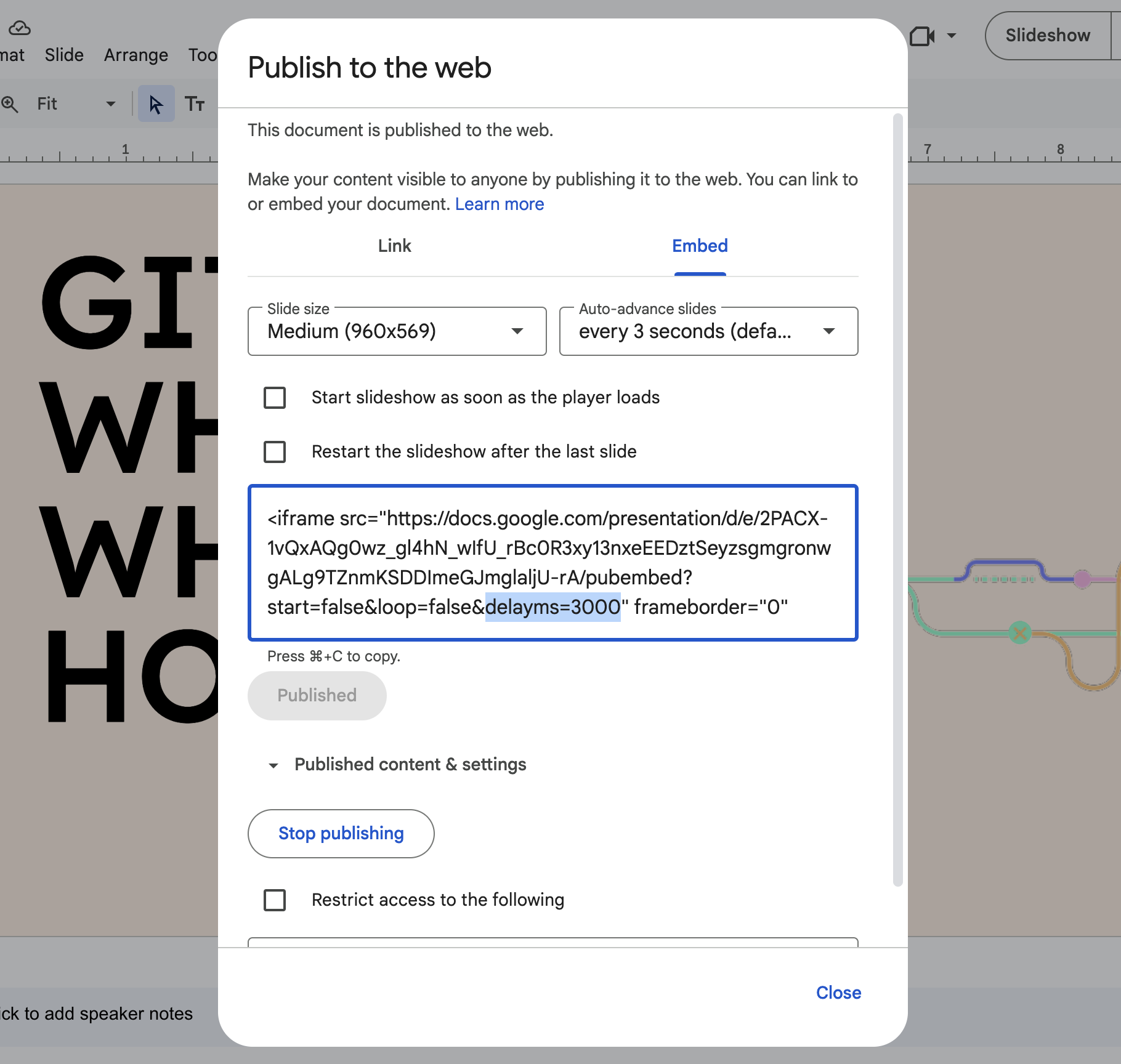
- Copy the entire code snippet in from the embed window in the previous section
- On a wiki page, click the three dots next to the Insert Image button in the toolbar
- Click the second button from the right, Insert/Edit Media
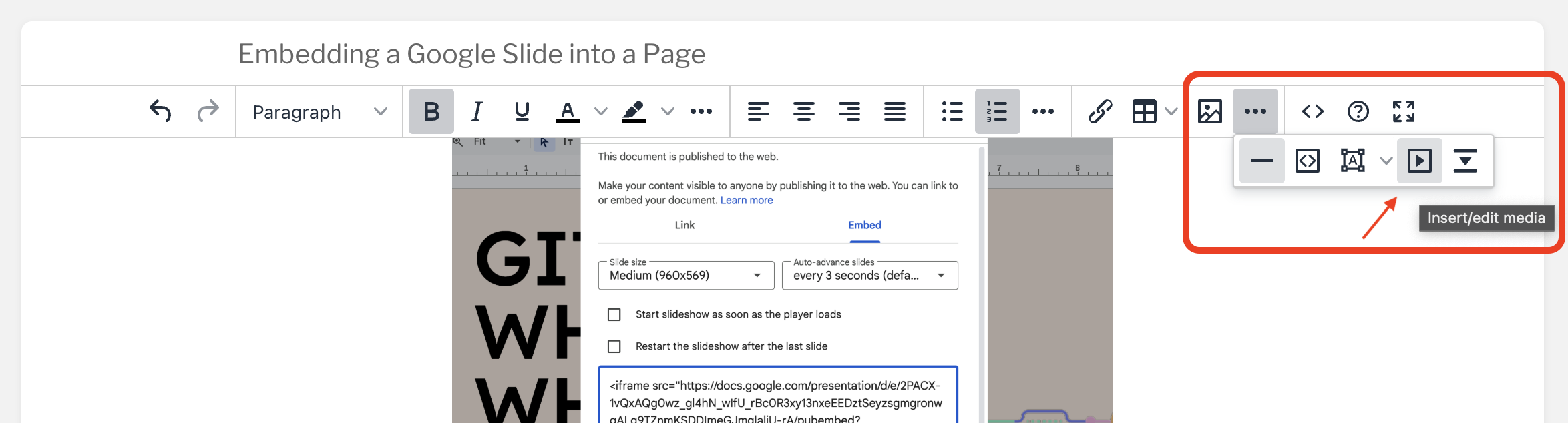
- In the Embed tab, paste the code snippet you copied in step 1
- Click Save