
Downloading Solidworks
Now that you have done all the prerequisites for SolidWorks, let's get to downloading!
1. First go to my.solidworks.com and create an account
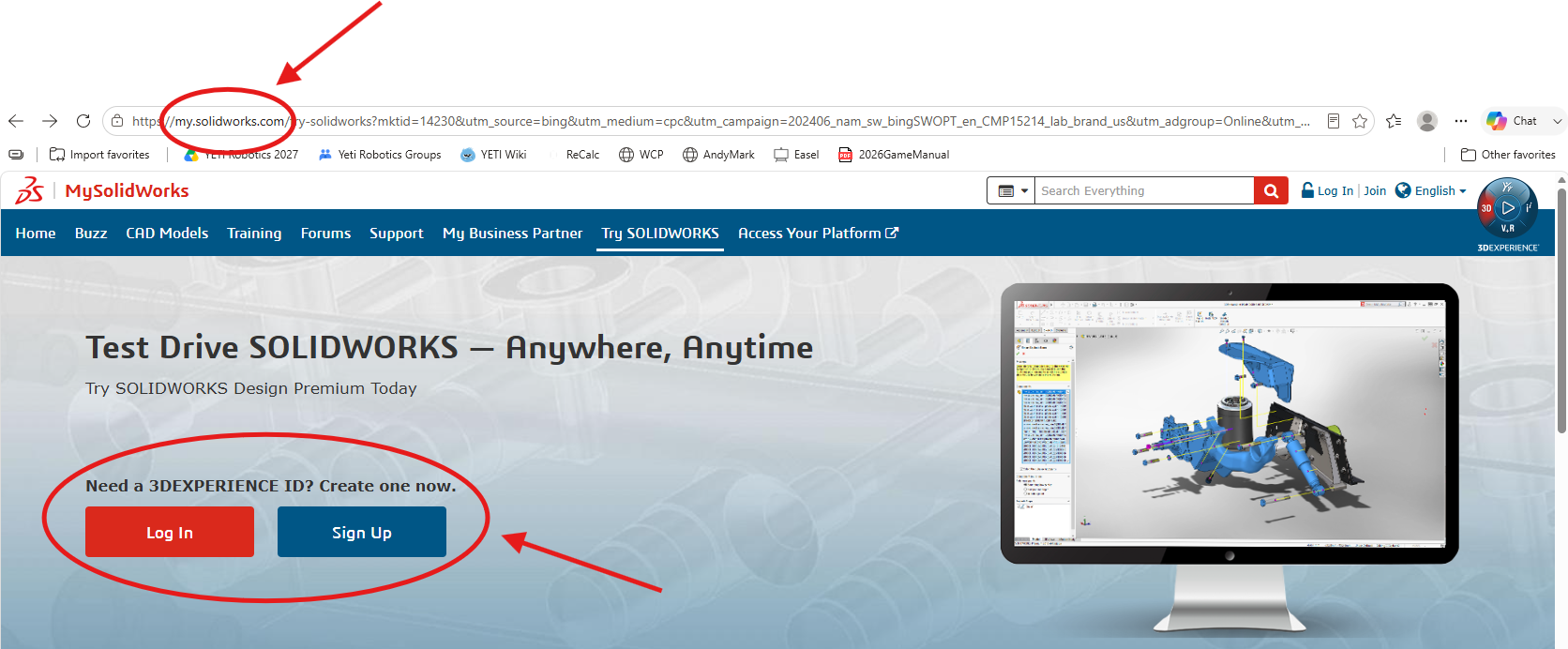
If you already have an account, you can skip this step.
2. Next go to SOLIDWORKS.com/SEK
Fill in your contact information, click Yes for your Serial Number, and select 2026 (SP2.1) for your SolidWorks Version.
Then click Request Download.
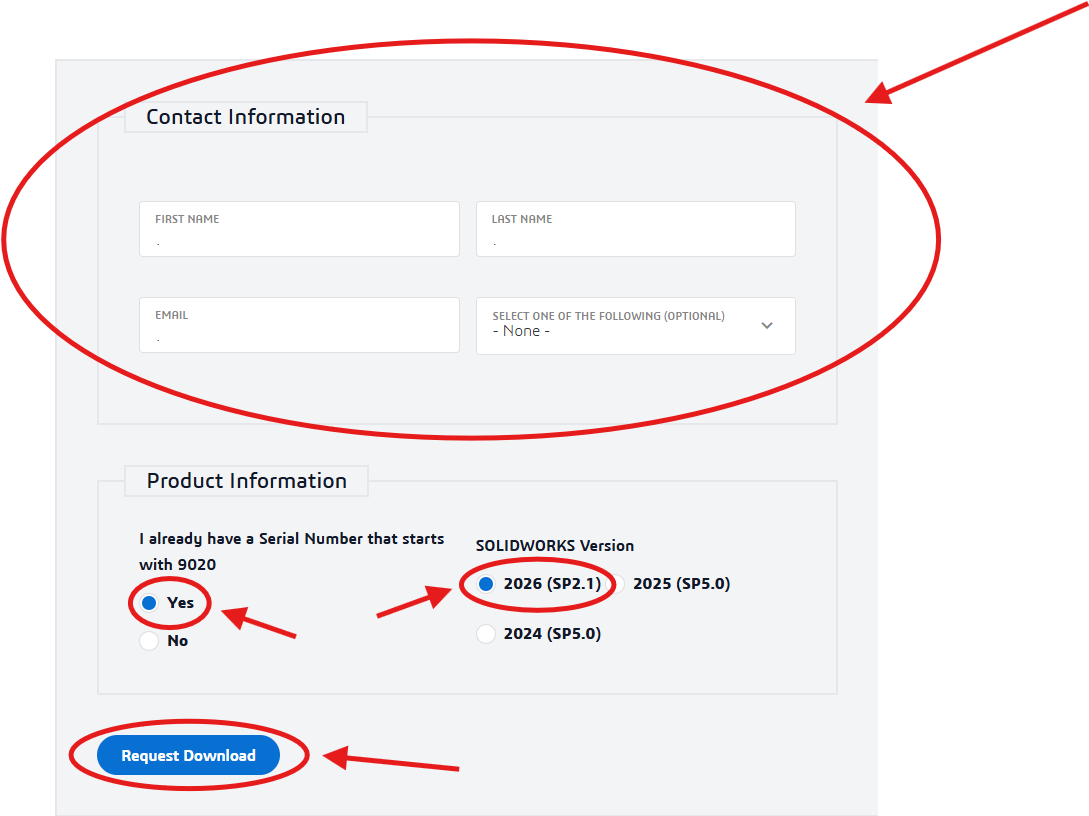
This ONLY applies to YETI student, ask your team for your Serial Number and Version!
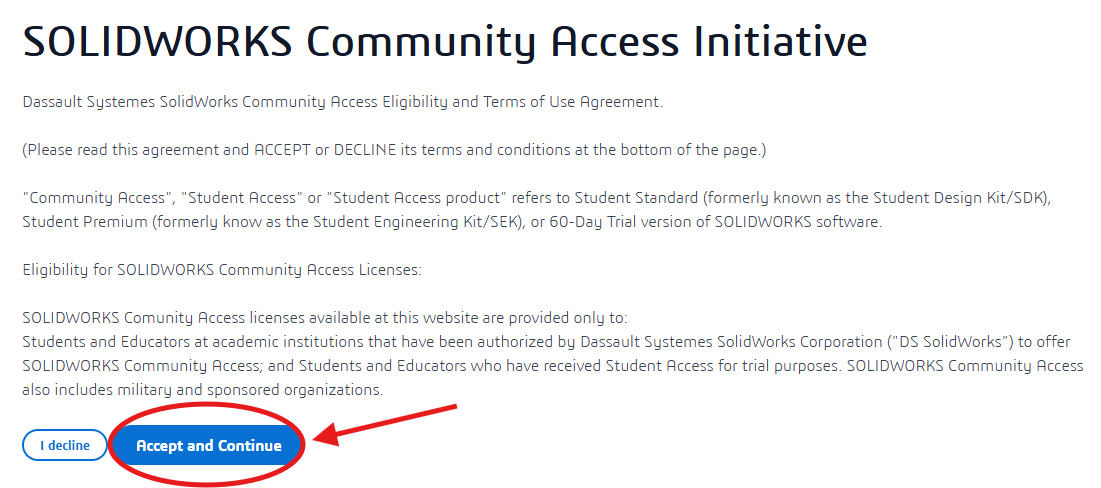
3. Next click Accept and Continue
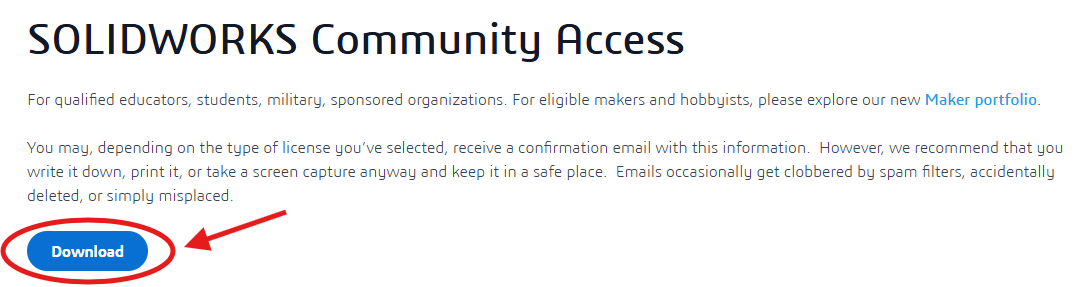
4. And then Download
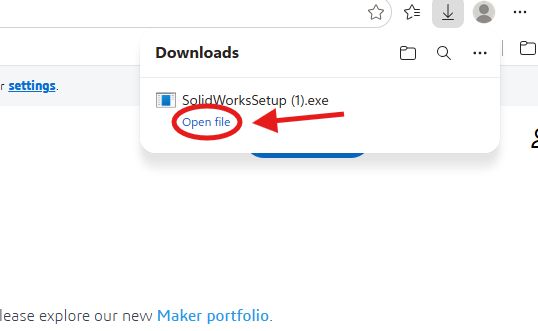
5. You should then see SolidWorksSetup pop-up in your downloads and click Open File.
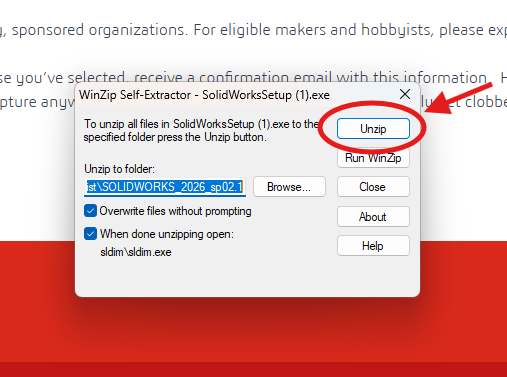
6. A pop up will then show up and click Unzip
7. If it asks, allow the program to make changes to your computer.
8. It may also ask you to reboot your computer. If it does, cancel the installation and restart your computer.
If you do restart your computer, you need to start from step 5 again.
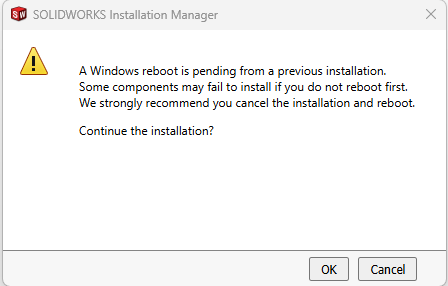
If you get the error a second time after restarting, continue the installation by clicking OK
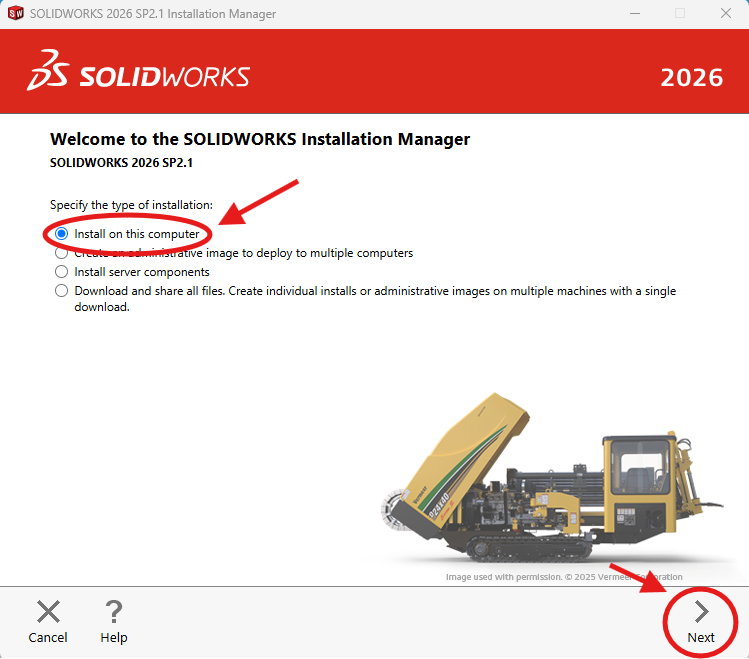
9. Make sure (Install on this computer) is selected and click Next
10. Enter your Serial Number in the space shown below, and click Next
YETI student can find your Serial Number in the pins of the YETI discord CAD chat.
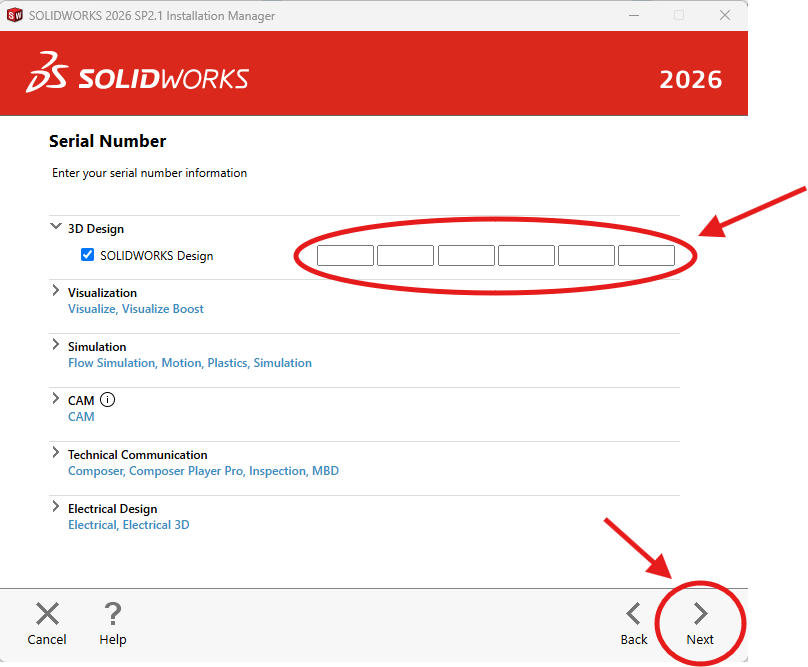
If you are not a YETI student, ask your team for a Serial Number.
11. Click the check on the Terms of SolidWorks, and then download and install.
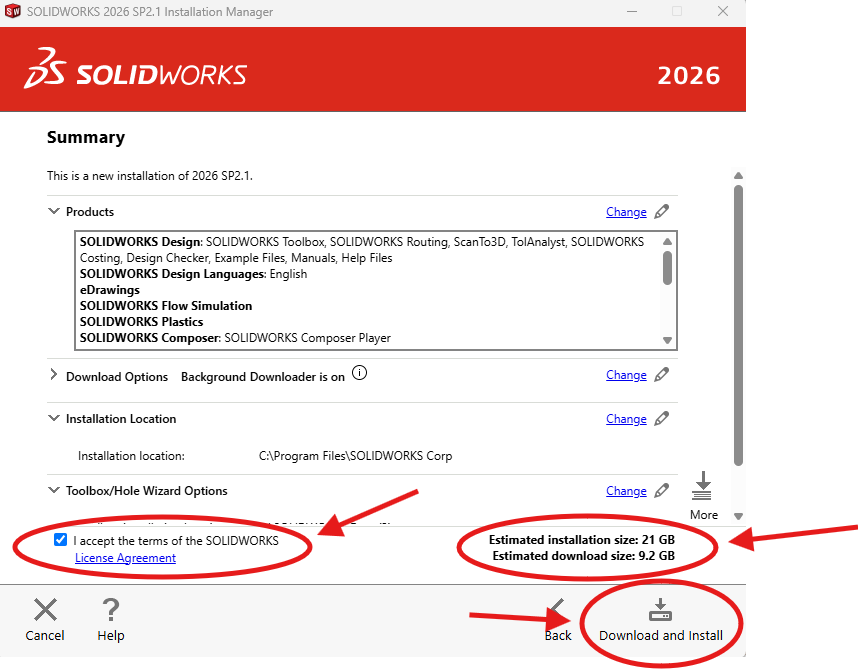
If you are using an old or previously used computer, make sure it has enough storage to hold what you are downloading.