
How to open Visualize?
Now that you have a file ready to render, we can move on to opening visualize!
1. First click the setting icon in the top bar of the menu
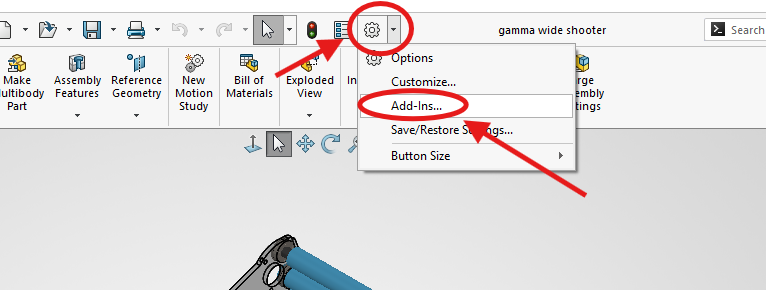
2. Then click Add-Ins
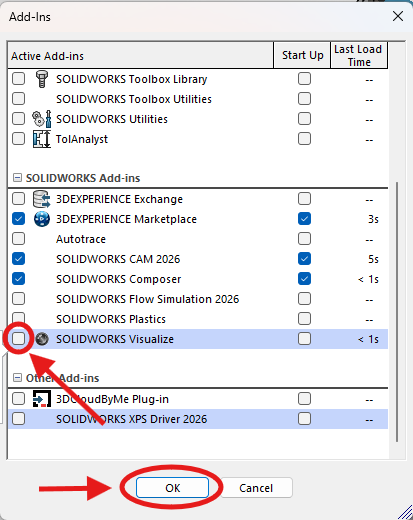
3. Next this pop-up will show up so scroll down till you see SOLIDWORKS Visualize
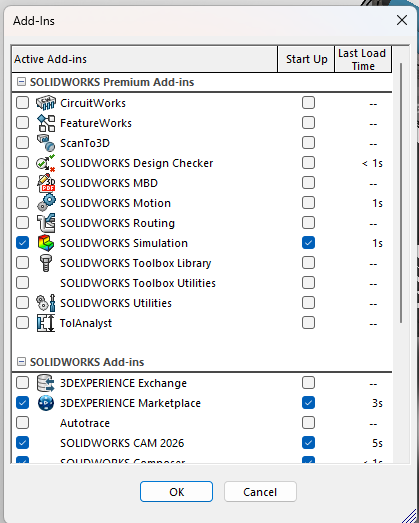
4. Then click the checkmark to the left of SOLIDWORKS Visualize and click OK.
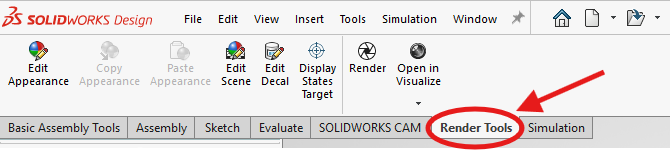
5. Then two new tabs will show up on your top bar, click Render Tools
6. Next click the arrow below Open in Visualize and Group by Appearance
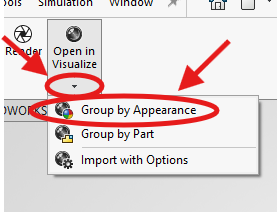
There is a glitch that when you close out SolidWorks then open it up again the Open in Visualize button is there but not clickable. If that is the case, just repeat steps 1-6 again and that will fix it.
7. Lastly you will receive the pop-up below
I would recommend creating a folder for all of your renders and changing the location to your new folder
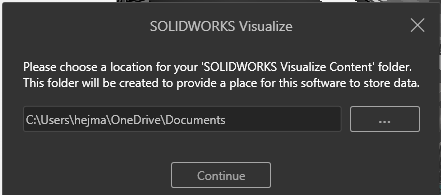
8. Once you are satisfied with the location for your renders click continue to open Visualize!