
How to use Visualize
Now that you have visualize open its time to get your photos rendered.
When you first open visualize there are many buttons and things you will be able to use, but for our need the most important things are the four below.
They are the preview in the middle of your screen, cube in the top middle, the portrait in the top right, and the paint can to the left of that.
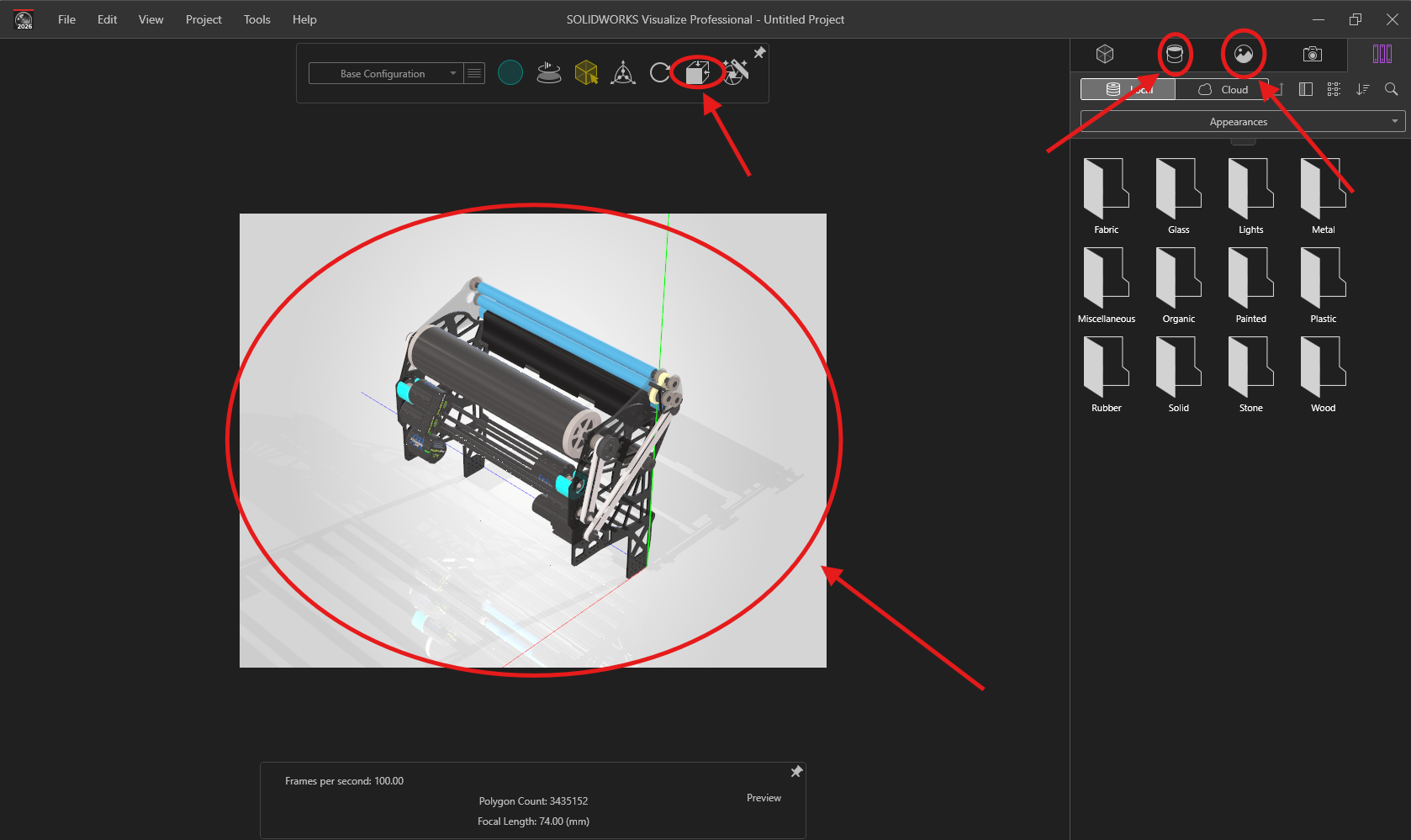
1. The preview is very simple; it acts like the 3d model of your item where you can rotate or zoom in and out.
While it does show some change when settings are changed, it is not completely accurate to the final rendering in the end.
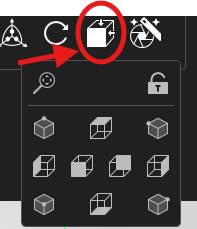
2. Next is the cube, when clicked it pulls up a small screen that allows you to change the POV easily.
Along with that it has the lock icon which stop you from being able to accidently change the POV you want.
3. Next is the paint bucket, there are many things you can do with the paint bucket, but the big one is changing the material.
Like I said in "What to do before rendering" if you made sure all your different materials are different colors then you can use the preview to click on different parts of your item and all parts with the same color will highlight and the color will pop up in Appearances.
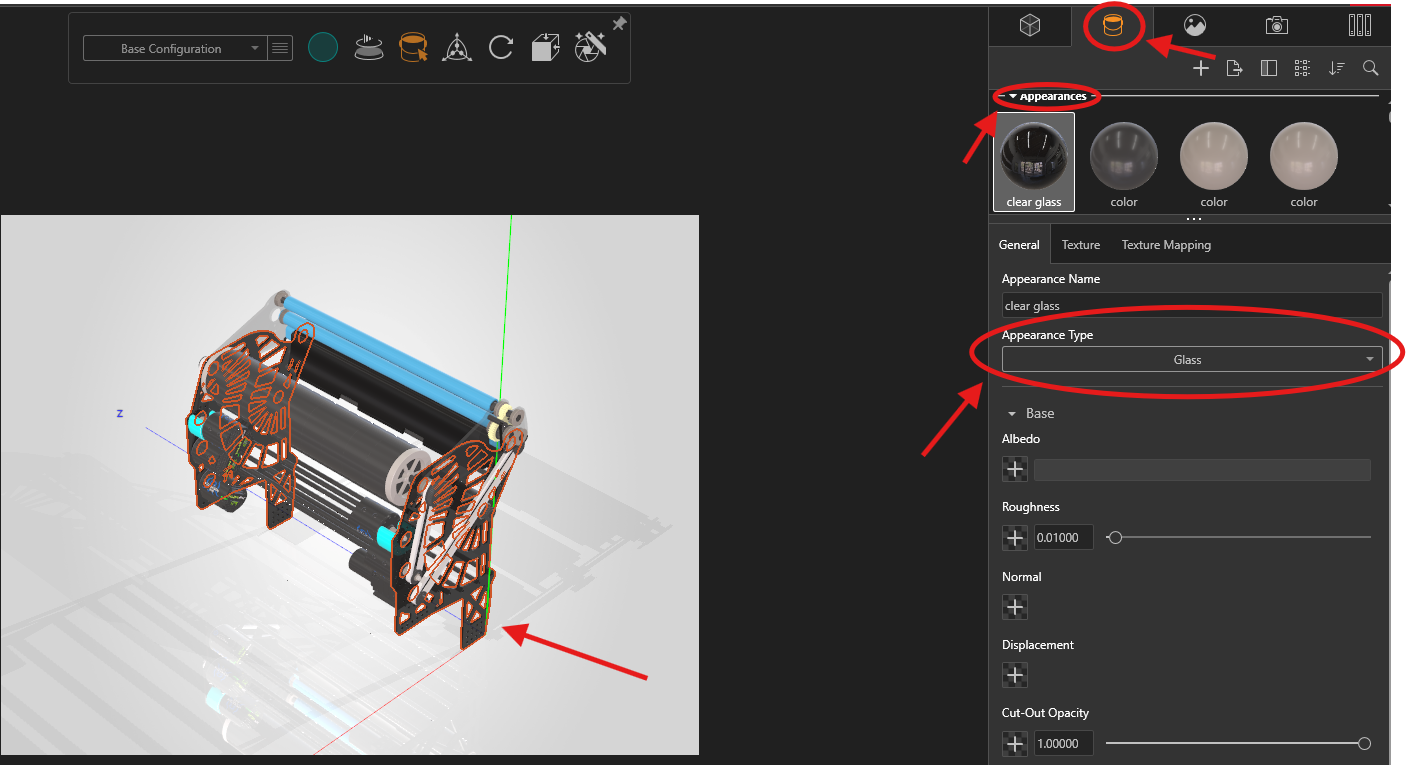
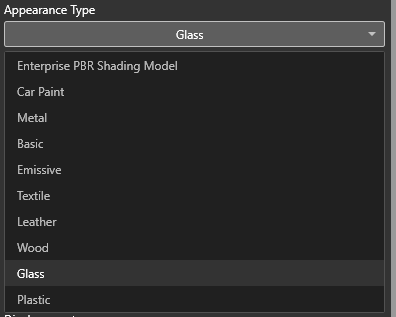
Once you have the part you want selected you can click on appearance type.
This will give a dropdown menu where you can select the material you want.
While these three feature are important they are optional to use, only needed to change the POV of the photo to your liking. On the other hand, this last feature has a set of steps that are required for YETI.
The last feature on the list is the portrait and there is a set of steps you must do to get a good render.
1. First, you need to find the box that says environments and scroll down till you see Backplates.
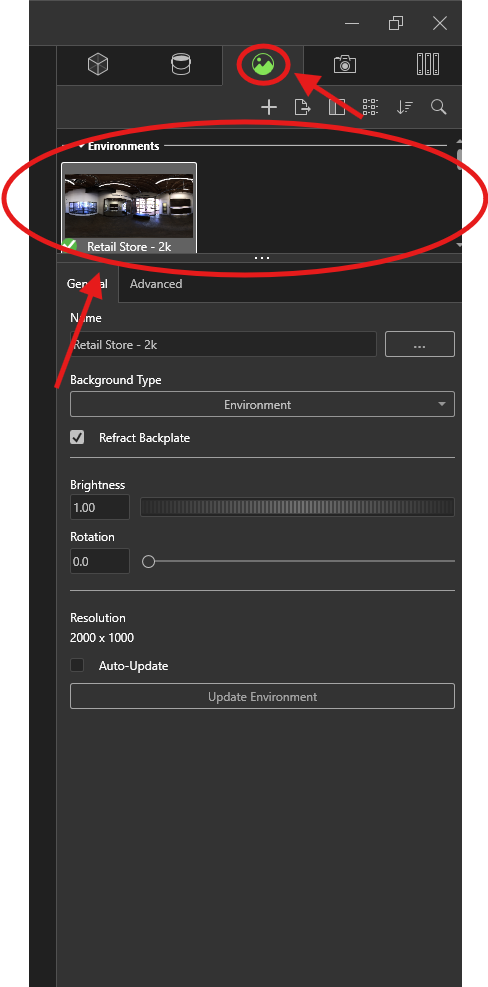
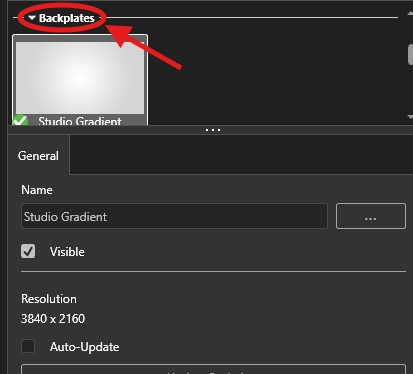
2. Next you will click on Studio Gradient and then the 3 dots next to Name.
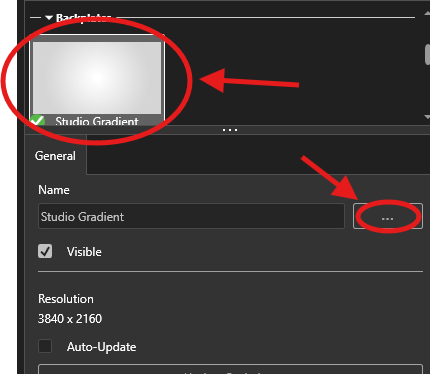
3. Then you need to pick a downloaded photo of a pure white screen.
This can be anything from a screenshot to a download.

There is a white photo above this disclaimer on top of the black line that you can save and download.