
How to do a discharge test
you must click now new test and will be directed to this page(just remember that you must have your CBA unit pluded in)
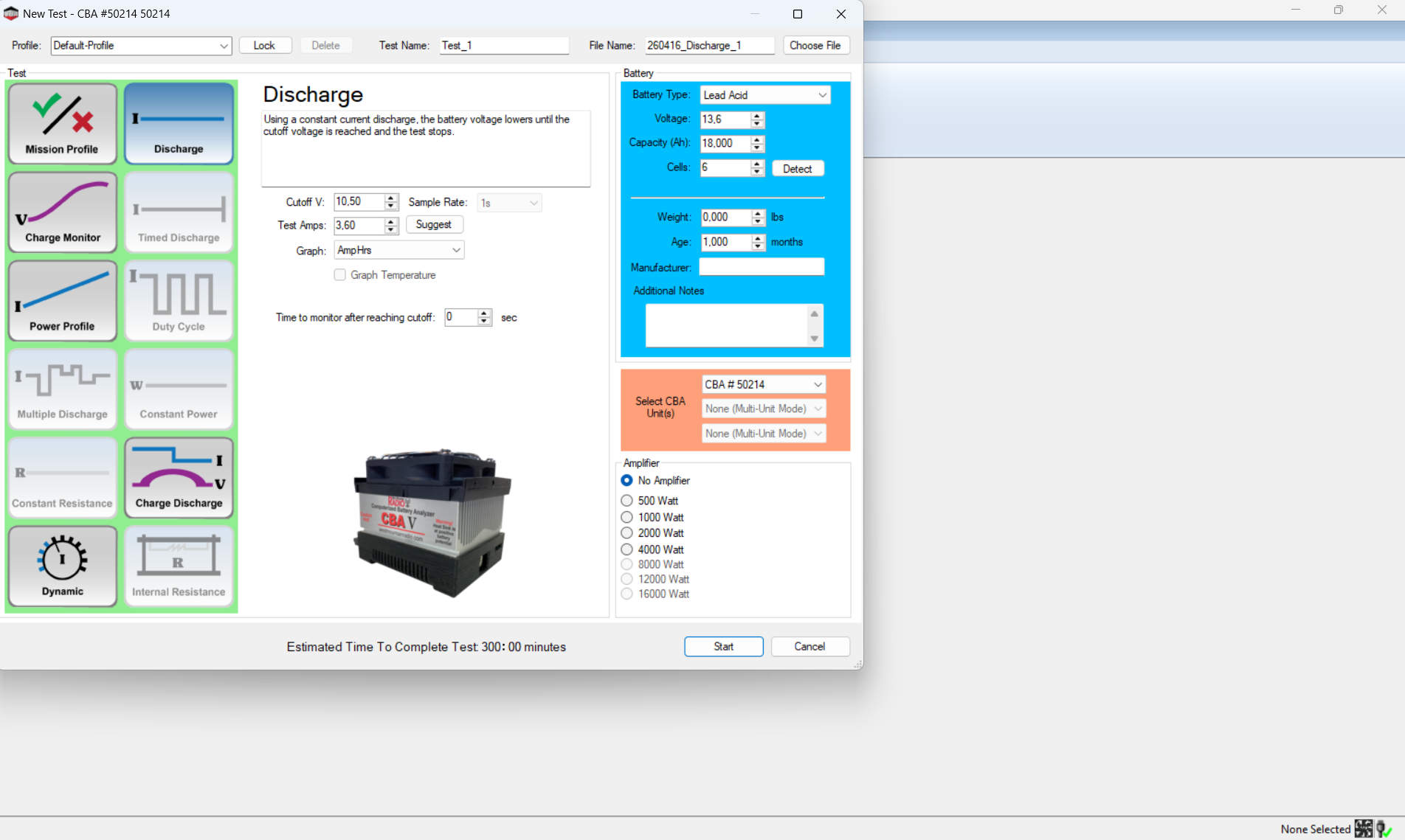
once pluged in the battery to the CBA and the CBA to the pc on the bottom righ corner it will say none selected then a fan and nex a usb with a ✅and now you can click new test and you will be directed to the thing in the top left for this test we will be doing a discharge,
Step 1 you will click detect on the blue square wich will tell you the Voltage of the battery and the cell you will have to manually put the Capacity (Ah) for exmaple my batteries are 18Ah so the CBA just put 18 (for me) don't put 18.000 just put 18.Now under discharge you will have to click detect and make sure that the cutoff is at 10.50 else it will nefer finish and it shuld put the correct test amps, you don't need to do anything else but click start and wait for the test to finish
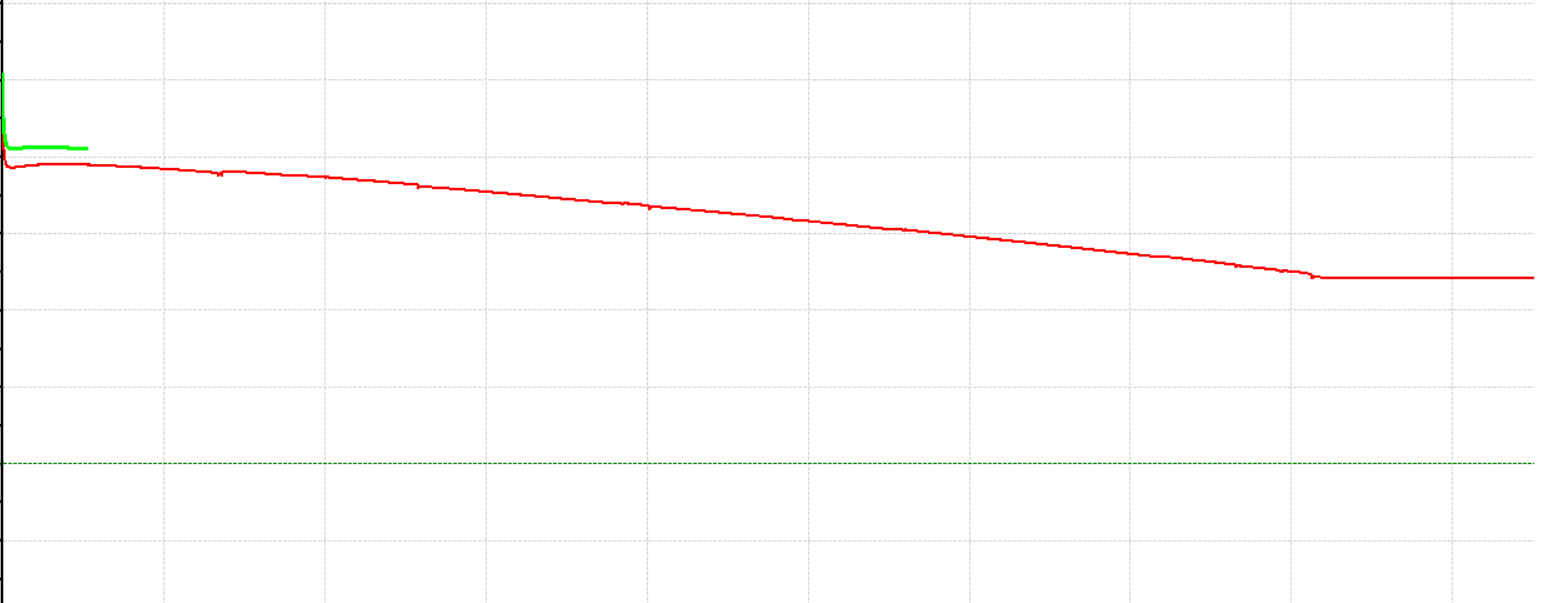
once you start seeing a color line moving that means that your test is running correctly, just fyi you will need more than 3 hours for this test.
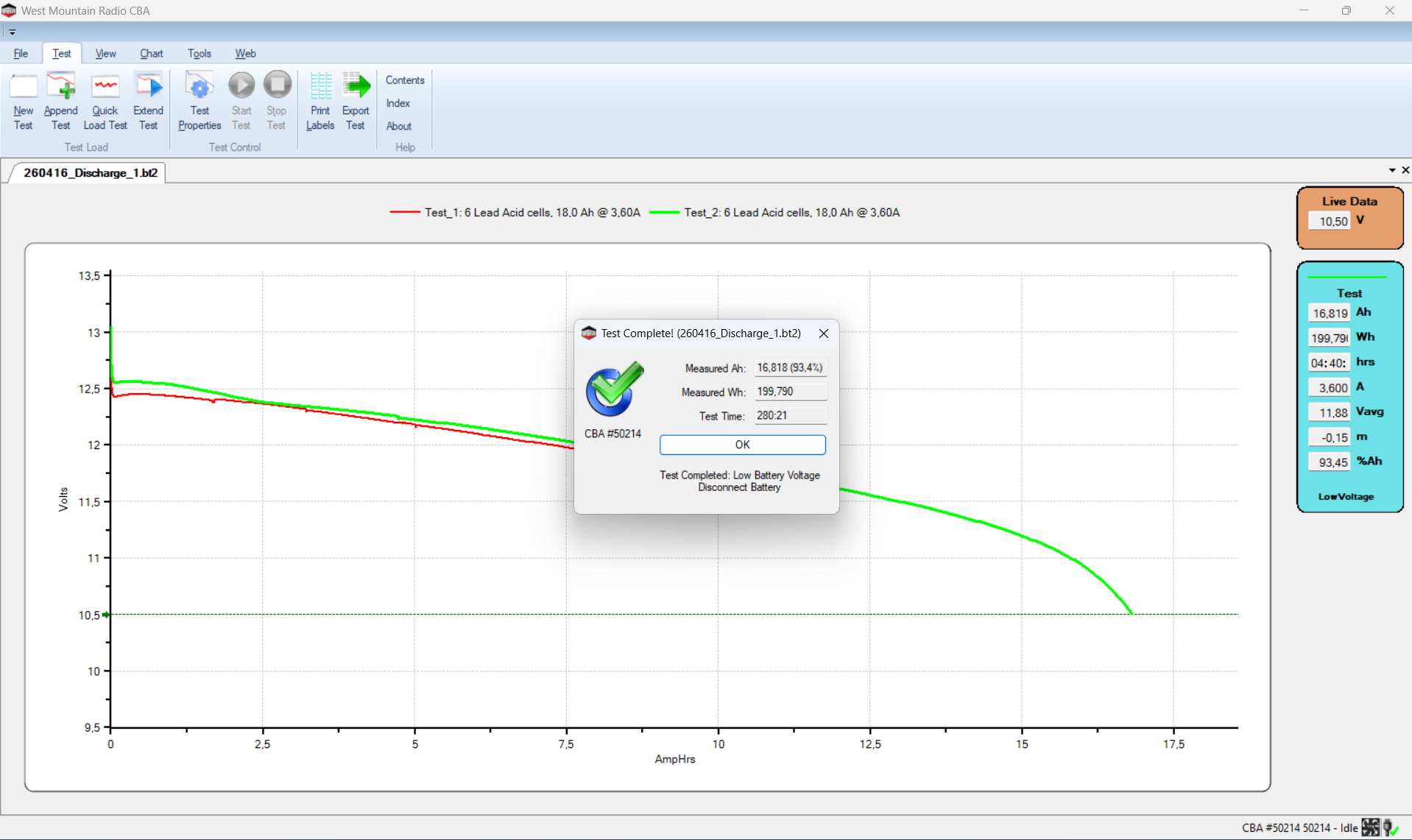
when the test is finished you will see that the line has reached the cutoff or 10.5 volts in my case wich is the green dotted line with an arrow on your cutoff voltage at 10.5V
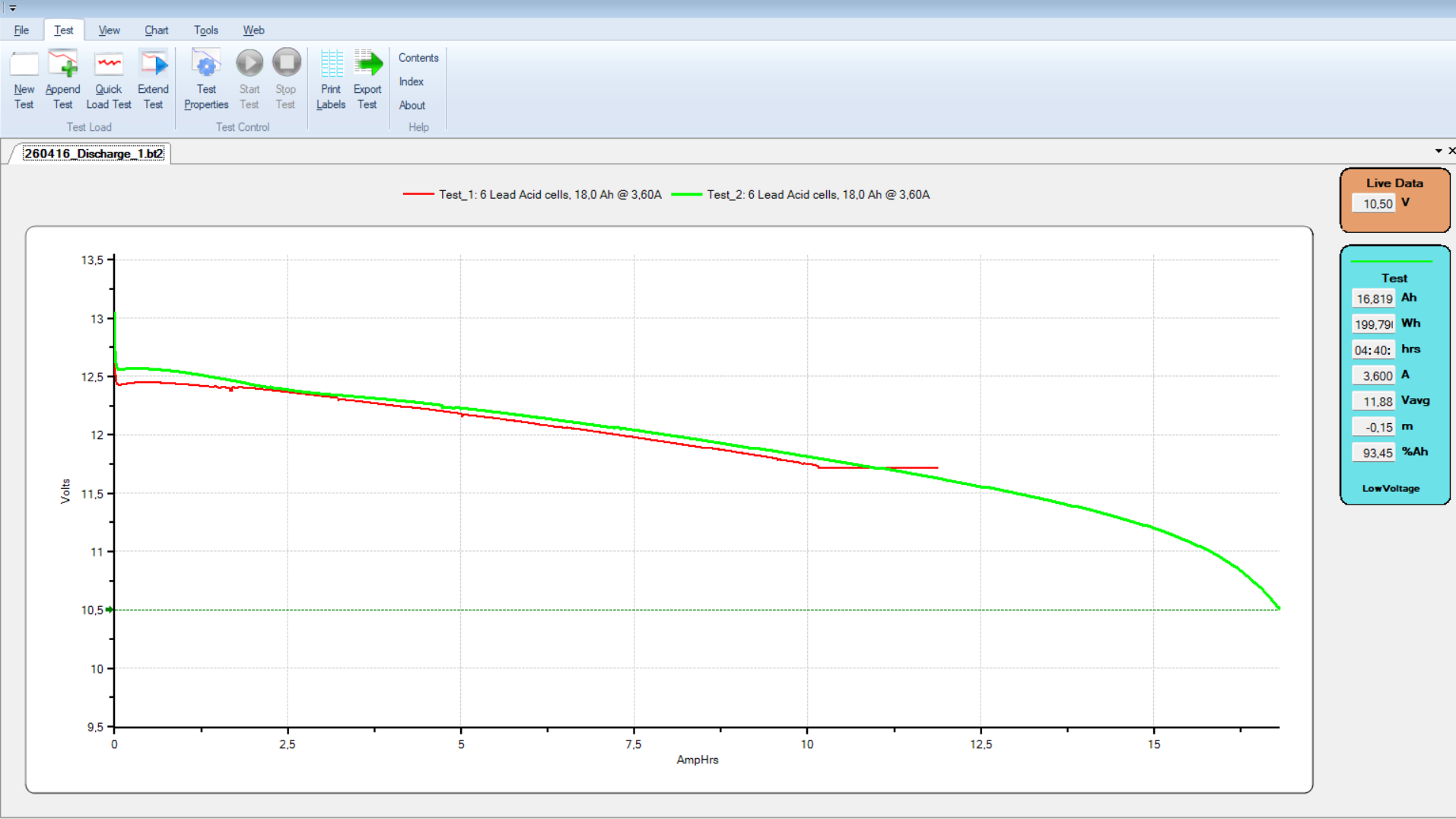
as we can see on the graph the solid green wire has reached the cuttof voltage so the test is finished but the solid red wire did not rech the green light because 3 hours was not enough so that is a failed test.
Now once you have finish your test on the blue rectangle on the right we got all the information the oragne square gives you live data of your battery
Now on the top left you can either make a new test wich will open another file you can also append another test on the same graph, you can do a quick load test, you can also extend the test, you can see the test properties, you can print lables and export the test