
Position Tuning with MotionMagicTorqueCurrentFOC
This is a simple guide on how to tune MotionMagicTorqueCurrentFOC:
Firstly, and most importantly, find your maximum and minimum setpoints!!!!!
Put these as preset position rotations in Phoenix Tuner.
If you don't, your robot will break!
Signals:
Add the following signals to the plot:
- Position
- PID Position (Reference)
- Velocity
- PID Velocity (Reference Slope)
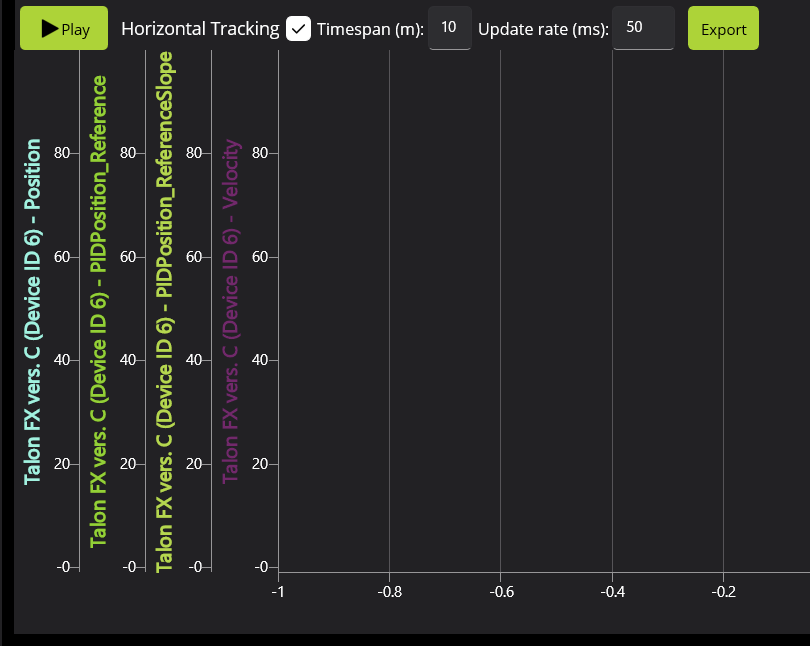
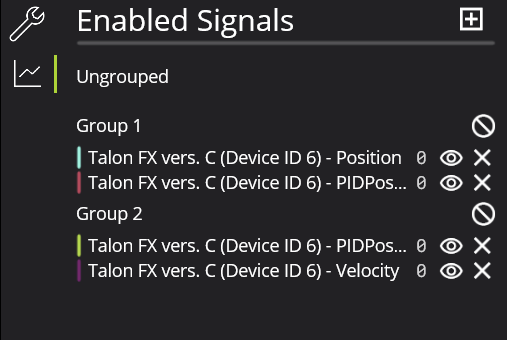
Create two groups to create uniform scales (feel free to change colors as necessary to increase visibility):
- Position & Position (Reference)
- Velocity & Velocity (Reference Slope)
Tuning:
Make sure your motors are working together:
To do this, move each motor in the mechanism separately with positive DutyCycleOut to find inversions.
Simulation:
In sim, we don't need to worry about kG and kS because gravity and static friction don't affect simulation tuning. Then, follow these general steps:
- Binary Search kA to get the slope of your Position line to match the Reference line
- Add kV to maintain the Position line after its peak to keep on matching the Reference
- Try and use kA and kV as much as you can to match the line and limit the amount of PID tuning
- Binary Search kP to reduce the error between the Position and Reference (try not to make it oscillate to much: you should only need a little)
- Lastly, add some kD to dampen out the oscillation made from kP
- You can tweak these gains to minimize the error between the Position and Reference
You can keep on doubling the Motion Magic Acceleration and Velocity to make the mechanism move faster as well
Real Life Tuning:
- Zero all PID gains.
- Increase kG to find the smallest possible kG that stops the arm from moving.
- Increase kG and find the largest possible kG that stops the arm from moving.
- Set kG to the middle of the two values.
- Set kS to half the difference between the two values.
- Set a setpoint relatively small (typically 0.1 mechanism rotations).
- Follow the steps above from the Simulation Tuning
- Increase kP until you notice significant overshoot.